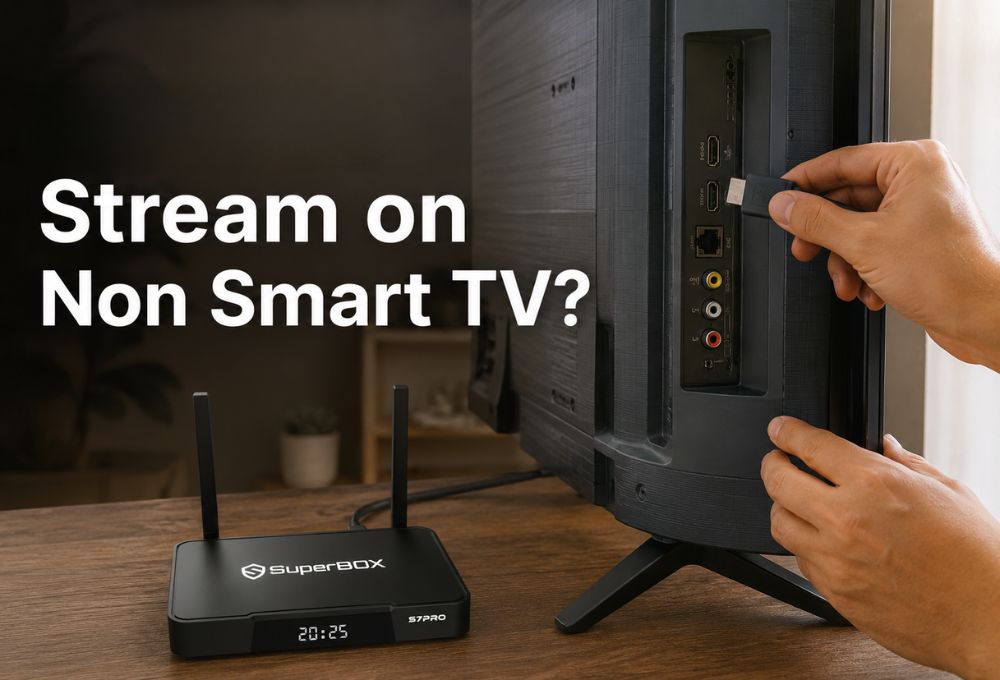
If you’re wondering how to stream on non smart TV, the good news is that turning an older television into a streaming powerhouse is easier and cheaper than buying a new one. Whether your old TV lacks built-in apps or you simply want more control over your viewing experience, you can set up streaming in under 10 minutes with the right hardware. The key is choosing a device that offers both simplicity and flexibility, especially if you want to avoid the bloated interfaces and constant ads that come with most modern smart TVs.
By connecting an external streaming device to your non-smart TV through HDMI or older AV ports, you can access all the content you need without replacing your existing screen. This approach saves money, reduces e-waste, and often delivers a faster, more responsive interface than budget smart TVs with slow processors and tracking software.
Why Keep Your Dumb TV? The Benefits of Upgrading Over Replacing
Your non-smart TV probably still works perfectly fine. It turns on instantly, displays a clear picture, and doesn’t force you to watch ads on the home screen. From what I’ve seen in the market over the last few years, customers who hold onto their older TVs tend to be happier in the long run because they’re not stuck with sluggish software updates or privacy invasions built into the operating system.
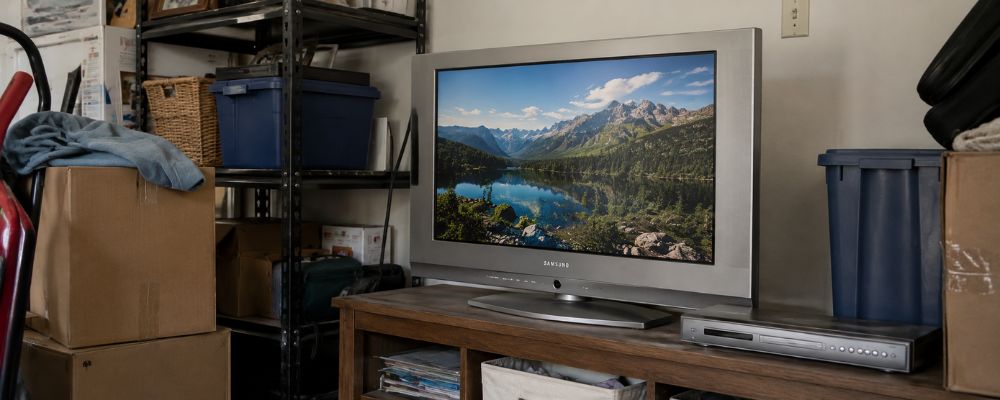
Replacing a working TV just to get streaming apps is wasteful and expensive. High-quality streaming devices cost a fraction of what you’d spend on a new television, and they typically run faster than the cheap processors inside budget smart TVs. Plus, when a streaming box becomes outdated, you can swap it out for a newer model without tossing an entire screen into a landfill.
The Easiest Way to Stream: HDMI Streaming Devices and Boxes
The simplest way to learn how to stream on non smart tv is by plugging in a dedicated streaming device through your TV’s HDMI port. These compact boxes and sticks connect to your home WiFi and give you instant access to apps, live channels, and on-demand content. Unlike smart TVs that lock you into one ecosystem, external devices offer flexibility and better performance.
Android TV Boxes: The Ultimate Choice for Freedom and Cable Cutting
Android TV boxes run on an open operating system that lets you install custom apps, access international content, and avoid the monthly subscription treadmill. Unlike restrictive sticks that limit which apps you can use, Android boxes give you full control over your entertainment setup. This is especially valuable for households that want content from multiple regions or need features like parental controls and time-shift recording.
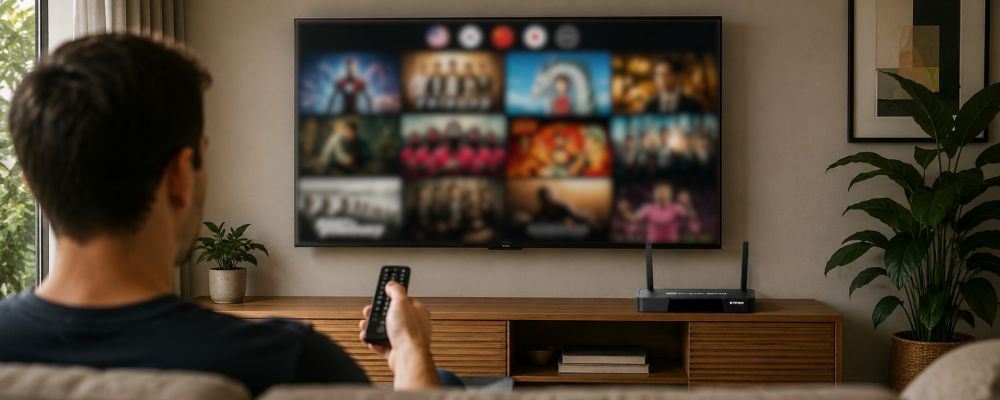
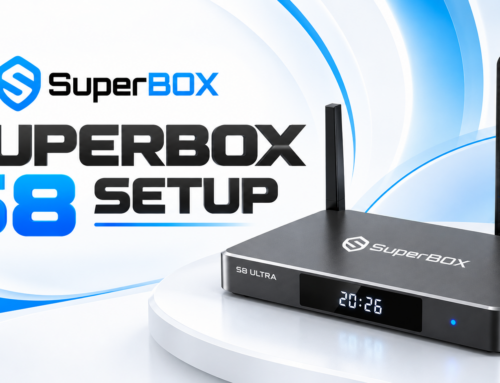
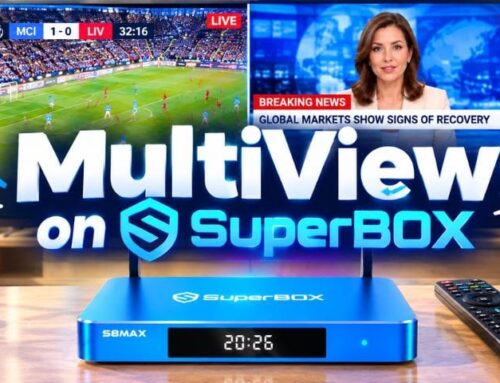
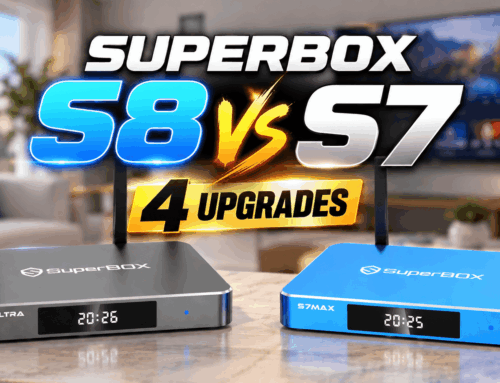
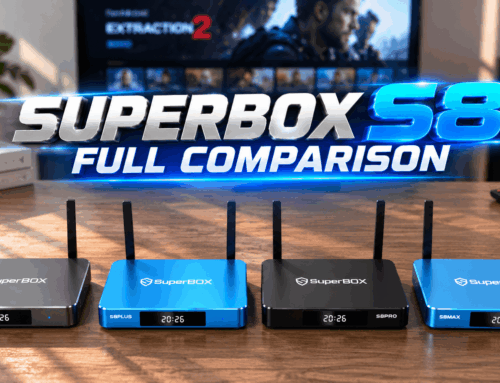
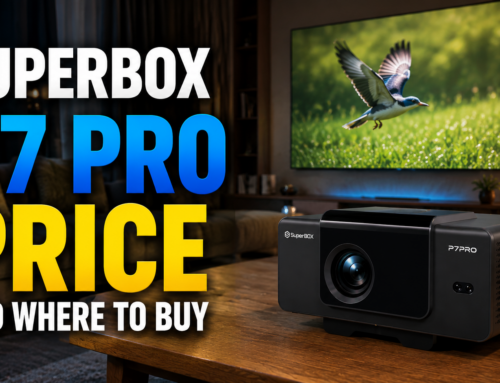
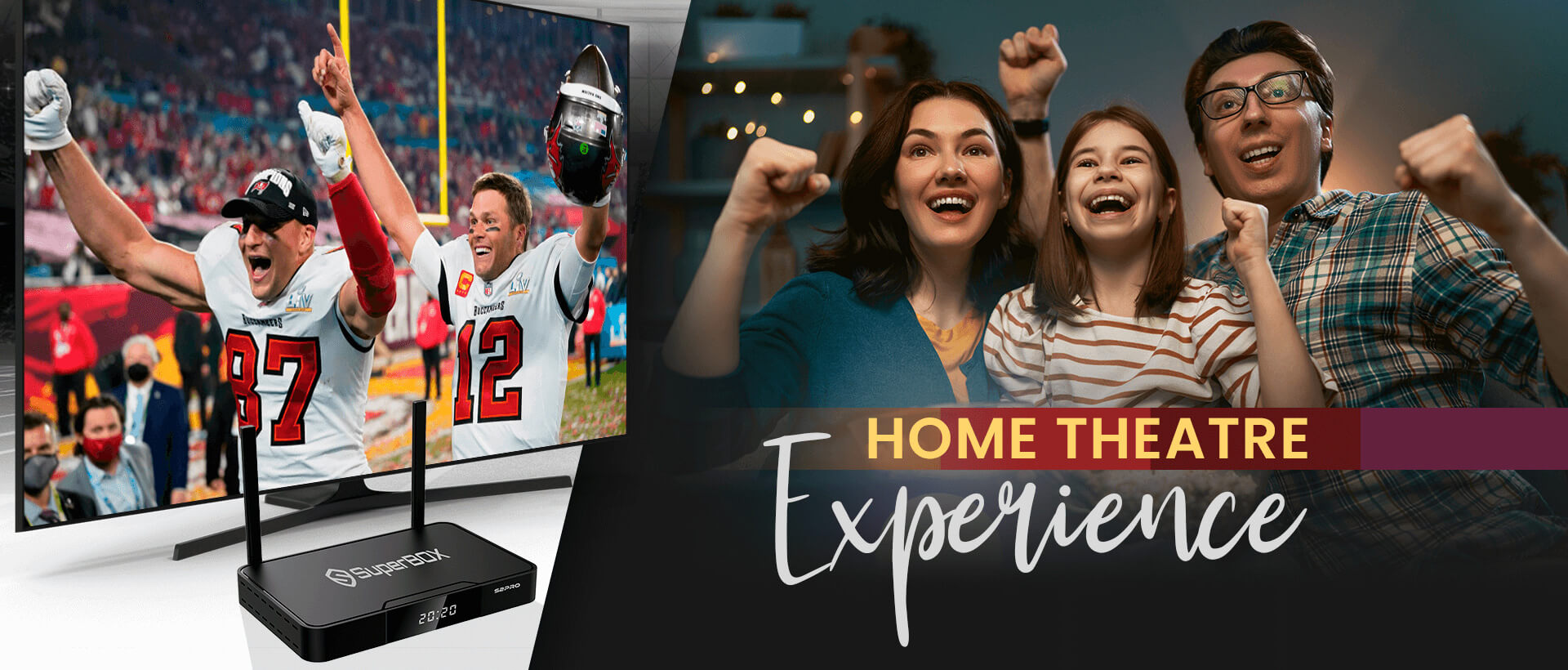
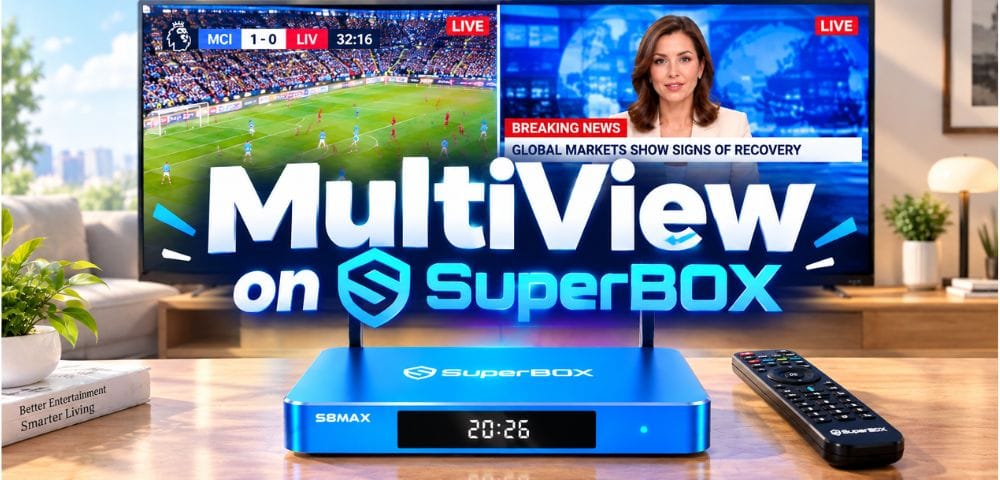
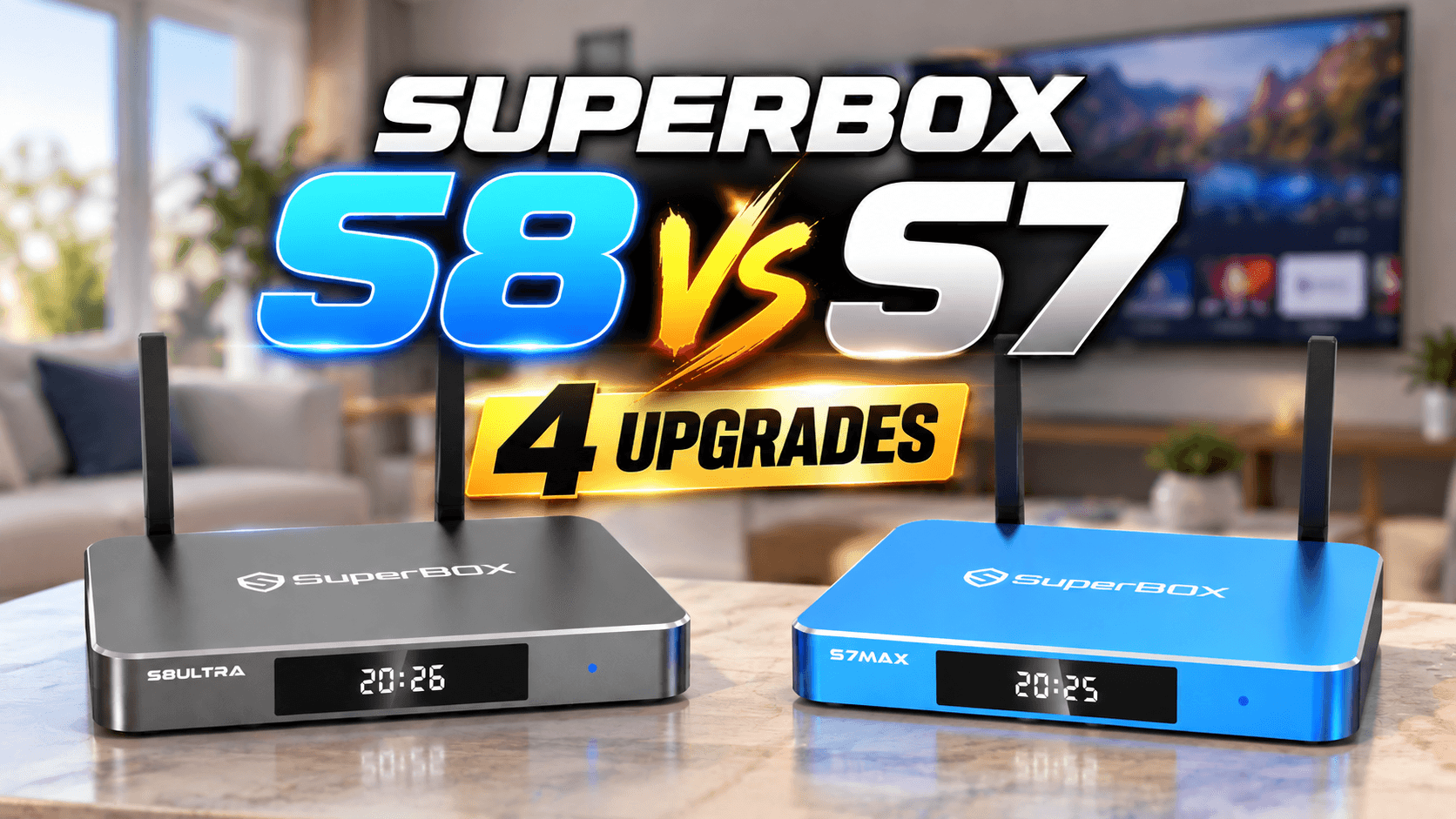
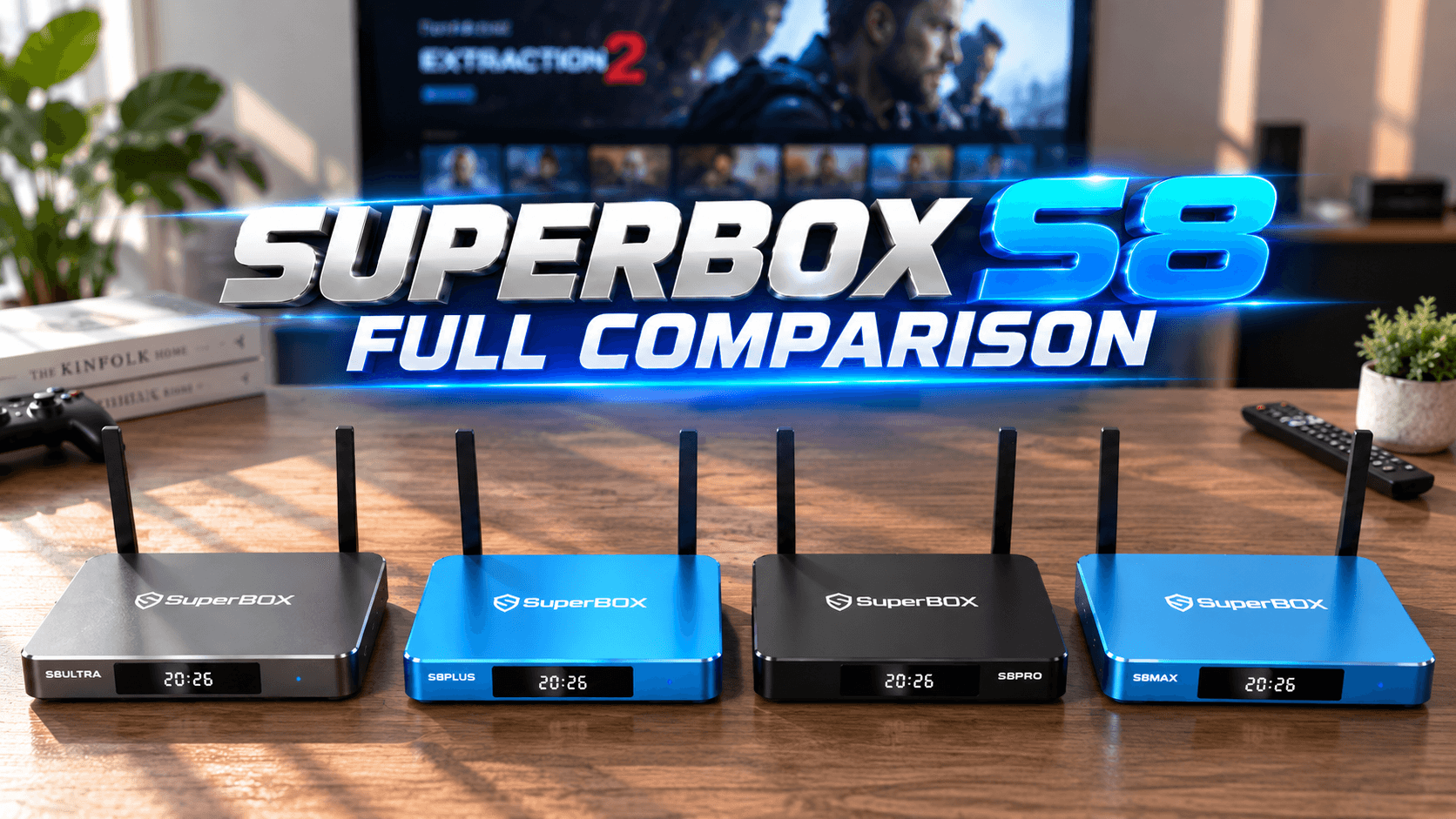
For users looking for long-term value, choosing the right Android TV box can make a significant difference. One option that consistently stands out is the SuperBox streaming box, which combines high-end hardware with a user-friendly interface designed for all ages. It’s a one-time purchase with no monthly fees, and it includes features like voice command, time shift, HDMI support, and built-in parental controls. For families who want to cut cable without compromising on content variety, this type of device offers the best balance of performance and value.
Streaming Sticks: Quick and Budget-Friendly Options
If you’re looking for something compact and inexpensive, mainstream sticks like Roku, Fire TV, and Chromecast are popular choices. They’re easy to set up and work well for basic streaming needs. However, they come with limitations. Most sticks restrict which apps you can sideload, push ads onto your home screen, and track your viewing habits to sell data to advertisers.
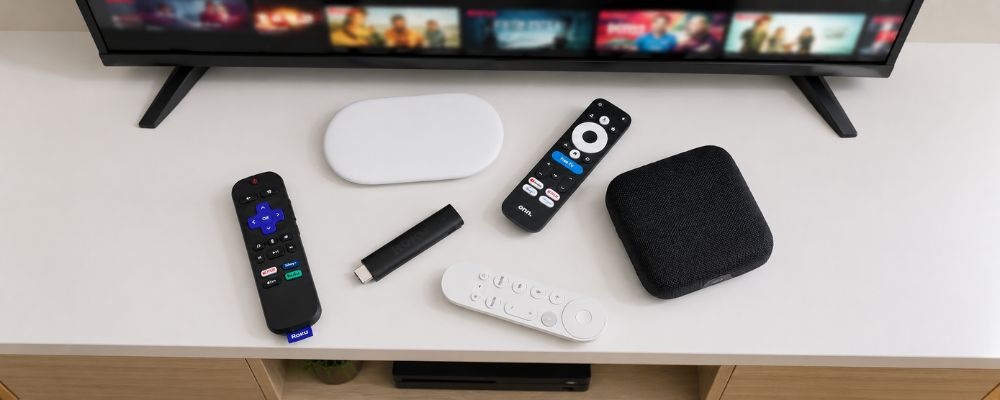
For light users who only watch a couple of subscription services, a stick might be enough. But if you want more control, fewer restrictions, and the ability to cut the cord without juggling five different monthly subscriptions, an Android TV box is the smarter long-term investment.
How to Connect a Streaming Device to Your Non-Smart TV: Step-by-Step
Once you’ve chosen your hardware, the setup process is straightforward. Most people can get everything running in under 10 minutes, even if they’ve never connected a streaming device before.
Step 1: Check Your Ports (HDMI vs Older AV RCA Inputs)
First, look at the back or side of your TV to see what ports are available. Most TVs manufactured after 2005 have at least one HDMI port, which looks like a flat rectangular slot.
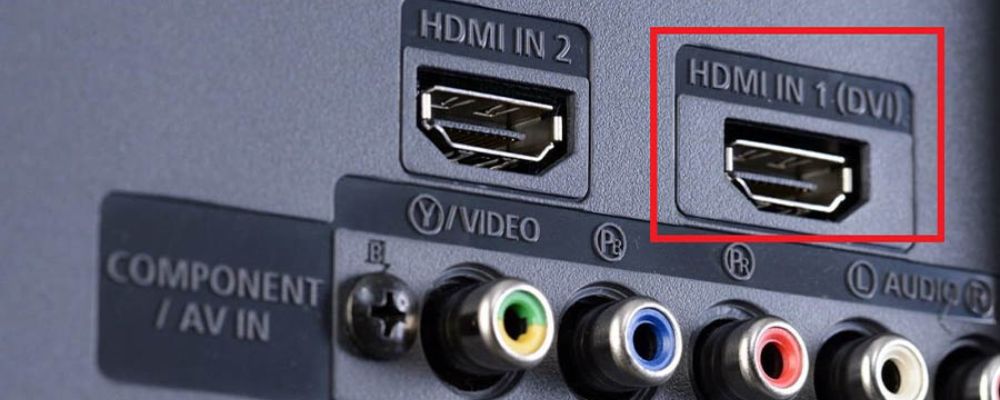
If your TV only has older yellow, red, and white RCA ports, you’ll need an active, powered HDMI-to-RCA converter to bridge the connection. Passive cables won’t work because they can’t convert the digital HDMI signal into the analog format that older TVs understand.
Step 2: Plug in and Power Up (Avoid the USB Power Pitfall)
This is a common issue for people learning how to stream on non smart TV. Many streaming devices include a USB power cable, and it may be tempting to plug it directly into your TV’s USB port. While this works for some devices, certain TVs may not provide enough power for stable performance. If your streaming device experiences freezing, unexpected restarts, or startup issues, try using the included wall adapter instead of the TV’s USB port. A direct power connection often provides a more stable power supply and can help prevent performance problems.
Step 3: Connect to Wi-Fi or Ethernet
After powering on your device, follow the on-screen prompts to connect to your home network. WiFi is fine for most users, but if your TV is far from your router or you experience frequent buffering, consider running an Ethernet cable for a more stable connection. Most Android TV boxes include Ethernet ports, which makes wired connections easier.
Step 4: Configure Your Settings and Input Source
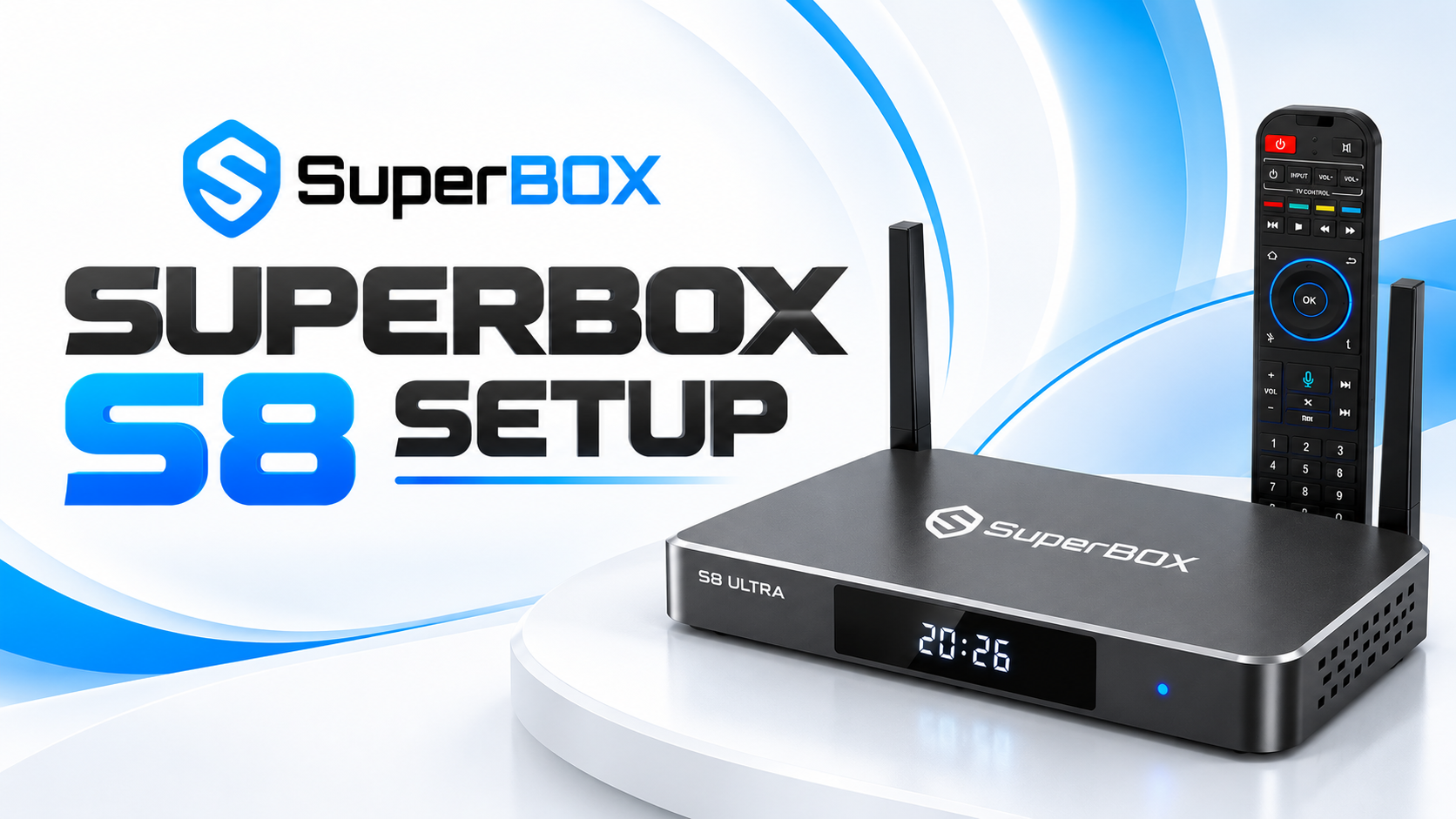
Use your TV remote to switch the input source to the HDMI port where you plugged in your streaming device. This is usually labeled as HDMI 1, HDMI 2, or something similar. Once you see the setup screen, follow the instructions to create an account (if required) and start installing apps. For devices like SuperBox S7 Max TV box, the interface is pre-configured, so you can start browsing content right away without dealing with complicated menus.
Alternative Ways to Stream Without Buying a Dedicated Device
If you’re not ready to invest in a streaming box or stick, there are a few workarounds you can try using hardware you already own.
Using Your Laptop or PC as a Media Source
You can connect your laptop to your TV using an HDMI cable and use it as an external monitor. This works for watching streaming sites through a web browser, but it’s not ideal for everyday use. Your laptop needs to stay on and connected the entire time, which uses more power and makes it harder to multitask.
Casting from Your Smartphone to the TV
Some newer phones support screen mirroring or casting, which lets you send video from your phone to your TV. This requires either a direct cable connection (like USB-C to HDMI, if your phone supports DisplayPort Alt Mode) or a wireless casting dongle like Chromecast or Anycast. It’s convenient for short clips, but drains your phone’s battery quickly and ties up your device while you’re watching.
Utilizing Gaming Consoles or Smart Blu-Ray Players
If you already own a PlayStation, Xbox, or a Blu-Ray player with built-in apps, you can use those to stream content. They work well enough, but they’re designed primarily for gaming or disc playback, so the streaming interface is often clunky and slow. Plus, they consume significantly more power than a dedicated streaming device.
Troubleshooting Common Issues When Streaming on Older TVs
Even with the best hardware, you might run into a few hiccups during setup. Here’s how to solve the most common problems.
Why Your Streaming Device Keeps Restarting (Power Supply Issues)
This is almost always caused by insufficient power. If you plugged your device’s USB cable into your TV instead of a wall outlet, switch it immediately. TV USB ports don’t provide enough voltage to keep most streaming devices stable. A proper wall adapter should fix this issue instantly.
What to Do If Your TV Has No HDMI Port
Older TVs with only RCA or component inputs need an active HDMI-to-RCA converter. These small boxes have an HDMI input on one side and RCA outputs on the other.
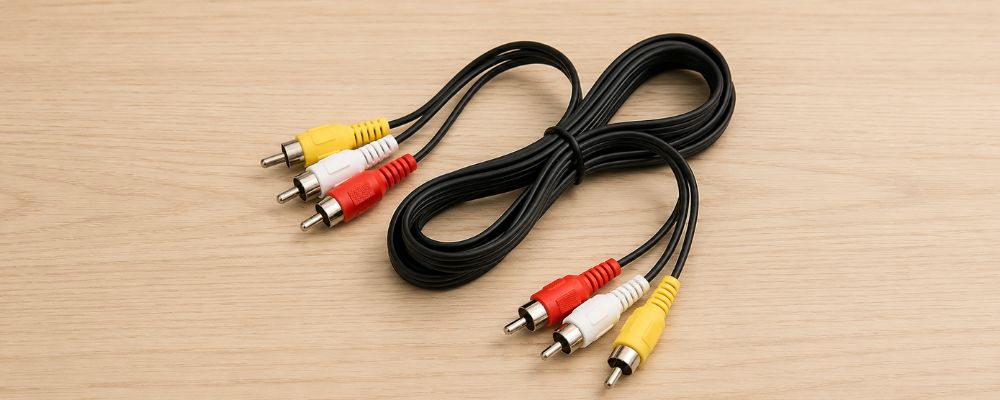
They also need their own power supply, so make sure you buy a powered converter, not a passive cable. Plug your streaming device into the converter’s HDMI port, then run RCA cables from the converter to your TV.
Solving Lag and Stuttering on Older TV Screens
If your video keeps buffering or stuttering, it’s usually a WiFi issue. Try moving your router closer to your TV, or switch to a wired Ethernet connection if your device supports it. You can also reduce streaming quality in your device’s settings to lower bandwidth usage. For more advanced solutions, check out our guide on how to improve WiFi for streaming.
Wrap Up: Turn Your Legacy Screen Into a Modern Entertainment Hub
Learning how to stream on non smart TV doesn’t require technical expertise or expensive upgrades. By choosing the right hardware and following a few simple setup steps, you can transform any older television into a fully functional streaming hub. The key is avoiding the common pitfalls, like using underpowered USB ports or buying incompatible converters, and selecting a device that gives you freedom rather than locking you into restrictive ecosystems.
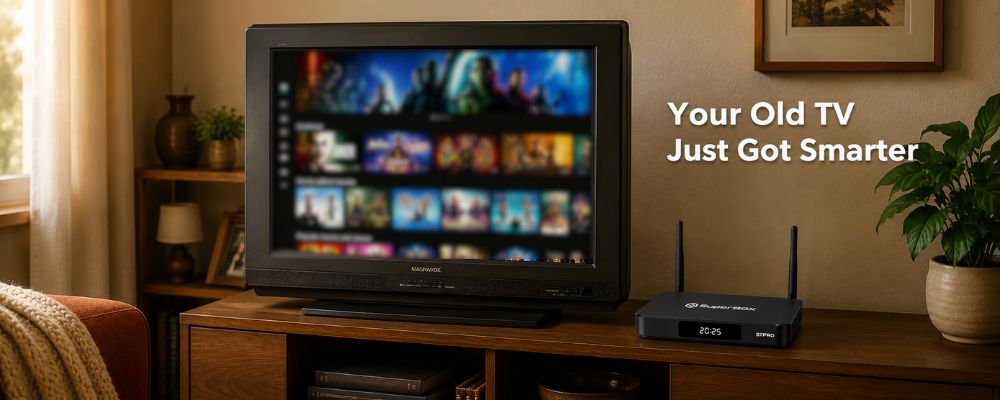
For most households, an Android TV box offers the best combination of performance, flexibility, and long-term value. A one-time purchase eliminates monthly fees, and the open platform lets you install whatever apps you need without restrictions. Whether you’re cutting cable, accessing international content, or simply want a faster interface than what modern smart TVs offer, upgrading your existing TV with an external device is the smartest move.
Frequently Asked Questions
How to Stream on a Non-Smart TV?
The easiest way to stream on a non-smart TV is to connect an external streaming device through an HDMI port (or an HDMI-to-RCA converter for older TVs). After connecting the device to the internet, you can access streaming apps and content without replacing your television. For the best experience, use a dedicated power adapter, ensure a stable Wi-Fi or Ethernet connection, and choose a streaming device that matches your entertainment needs and budget.
Do I need Wi-Fi to stream on a non-smart TV?
Yes, you need a stable internet connection. Most streaming devices connect via Wi-Fi, though premium Android TV boxes and some hubs allow you to plug in a wired Ethernet cable for a more stable connection.
Can I stream from my phone to a non-smart TV without any extra device?
No, you will need either an adapter cable (like a USB-C to HDMI cable, provided your phone supports DisplayPort Alt Mode) or a wireless receiver like a Chromecast or Anycast dongle plugged into the TV.
How do I connect a streaming device if my TV does not have an HDMI port?
You will need an active, powered HDMI-to-RCA (yellow, white, and red plugs) or HDMI-to-component converter. Plug your streaming device into the converter’s HDMI input, and run the AV cables from the converter to your TV.
Is it cheaper to make a TV smart or just buy a new smart TV?
It is almost always cheaper to make your TV smart. A high-quality streaming box or stick costs a fraction of the price of a new television and often runs much faster than the slow, ad-heavy software built into budget smart TVs.
Why does my streaming device keep rebooting when plugged into the TV?
This usually happens because you plugged the device’s USB power cable into the TV’s USB port, which does not output enough power. Plug the device directly into a wall outlet using the provided power adapter.
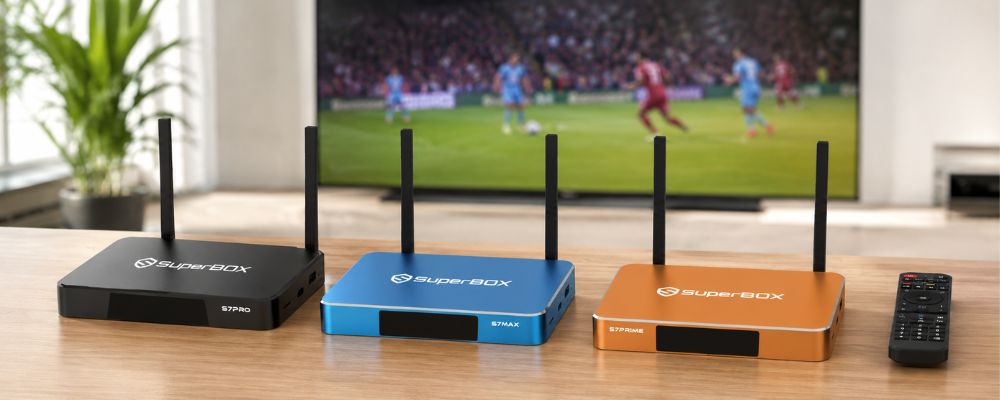
Ready to upgrade your TV experience? SuperBox makes it easy to bring modern streaming features to almost any television. Enjoy a smooth, user-friendly entertainment experience on your existing TV without the expense of replacing it. Explore the latest SuperBox models and find the right solution for your home entertainment setup.