
If you’ve ever wished you could keep an eye on the big game while catching the evening news, or let the kids watch their show while you follow yours, multiview on SuperBox S8 makes that possible without a second TV. This guide walks you through exactly how to enable Picture in Picture (PiP) and Multi Screen mode, and also helps you choose the right S8 model so you get the most out of the feature. Before diving into the setup steps, it helps to understand exactly what this feature does and how it works.
What Is Multiview on SuperBox?
Multiview is a built-in feature on the SuperBox S8 series that lets you watch two channels at the same time on a single screen. Instead of switching back and forth between channels, you can therefore keep both up simultaneously: one as the main focus, and the other in the background.
There are two multiview modes on the SuperBox S8:
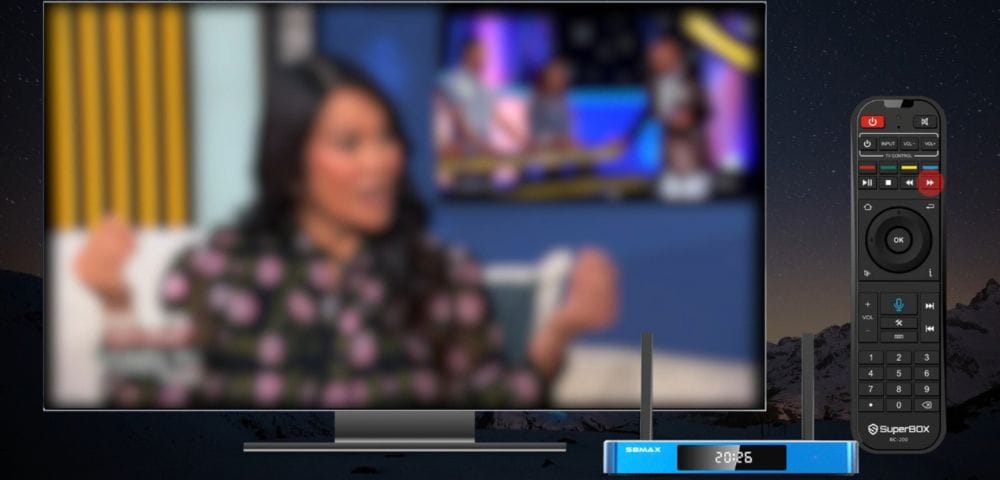
First, Picture in Picture (PiP): your main channel fills the full screen, while a second channel plays in a small floating window you can move and resize.
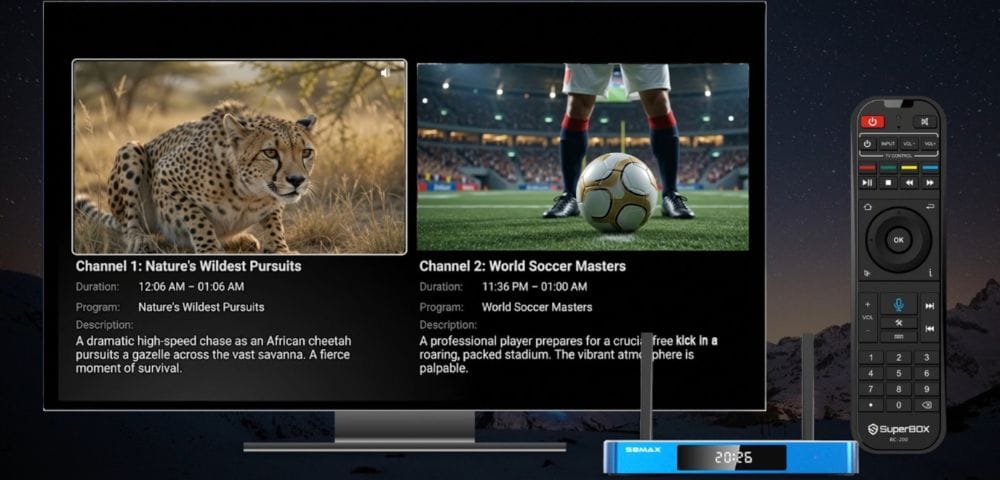
Alternatively, Multi Screen splits the screen into two equal windows, each playing a different channel at the same size.
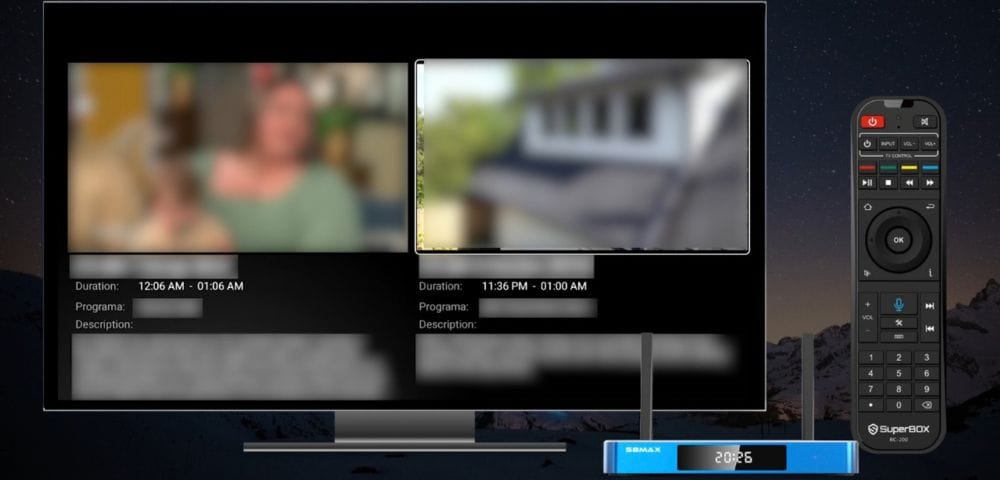
Both modes are built directly into the channels, so no extra apps and no workarounds are needed. Simply press a few buttons and you’re watching two channels at once.
Which SuperBox S8 Models Support Multiview?
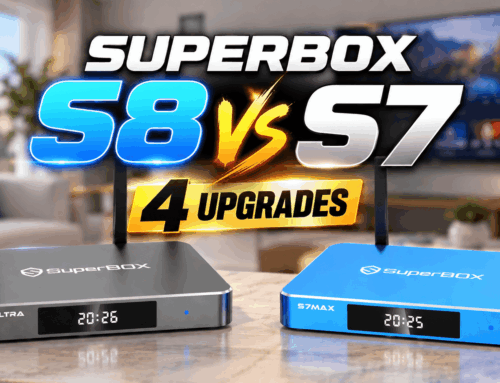
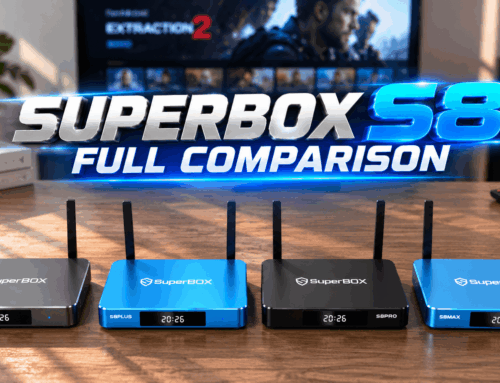
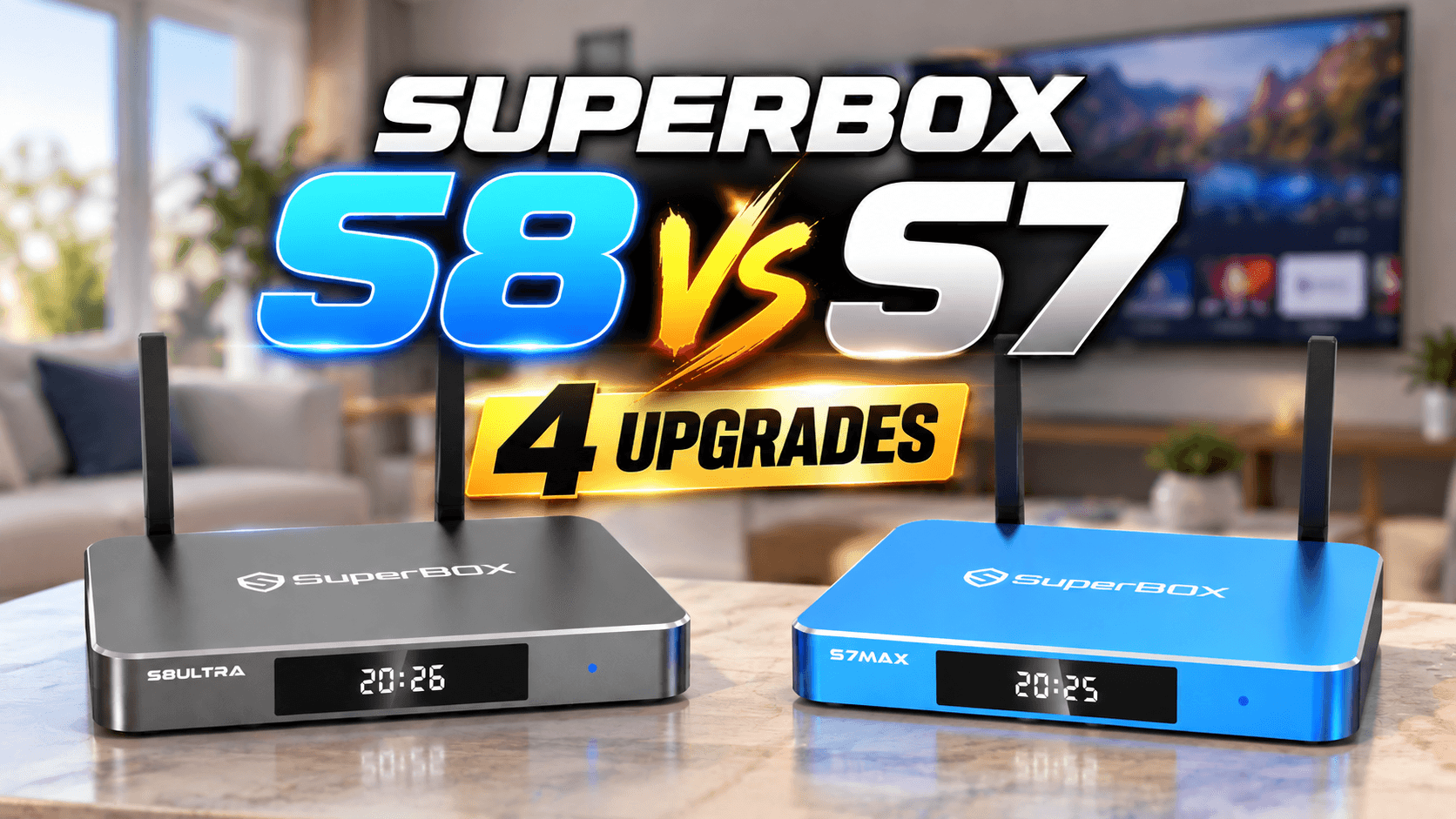
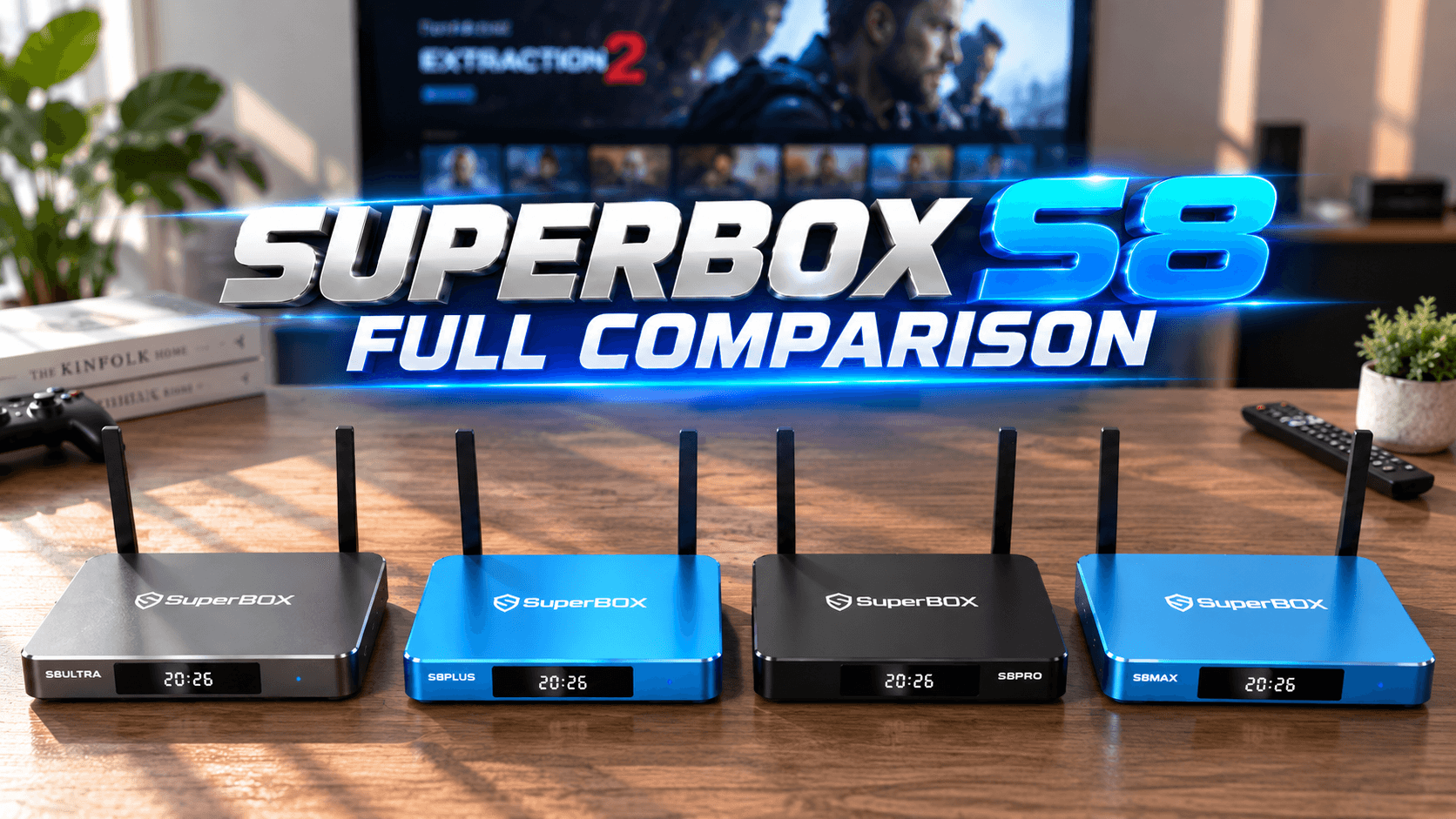
All four models in the SuperBox S8 lineup support multiview: the S8 Pro, S8 Plus, S8 Max, and S8 Ultra. However, there is an important difference in how many channels you can use it with:
Here’s a side-by-side look at how each model stacks up on price, channel coverage, and storage:
Model | Price | Multiview Range | Storage |
S8 Pro | 359 | 250+ channels | 32GB |
S8 Plus | 389 | 250+ channels | 64GB |
S8 Max | 399 | All channels | 64GB |
S8 Ultra | 449 | All channels | 128GB |
The S8 Pro and S8 Plus support multiview for a curated selection of mainstream broadcasts, which in turn covers most popular daily entertainment and major streaming content. So if you primarily watch mainstream networks, this is perfectly sufficient.
By contrast, the S8 Max and S8 Ultra unlock multiview across the entire catalog, including specialized and less common broadcasts, with no restrictions whatsoever.
Quick Tip: If multiview is important to you, the S8 Max at $399 is therefore the best value. It is only $10 more than the Plus, yet it jumps from a restricted list to full catalog access. In other words, that $10 difference is easy to overlook, but it is actually the biggest functional upgrade in the whole lineup.
With the model differences clear, here is how to actually turn the feature on and start using it.
How to Use Multiview on SuperBox S8: Step by Step
Getting Started
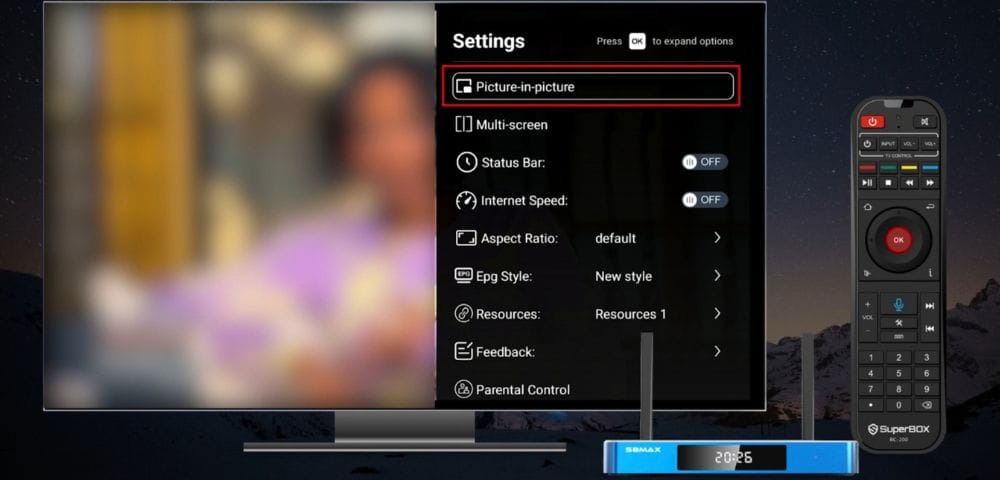
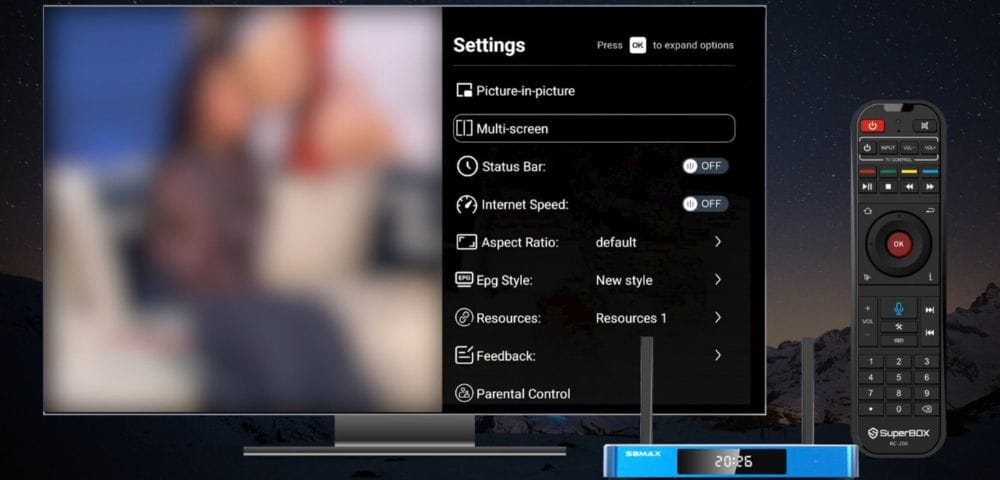
First, make sure your SuperBox S8 is powered on and connected to your TV. Next, choose any channel and let it play in full screen. Then press the Settings button on your remote. A menu will then appear on the right side of the screen with two options: Picture in Picture and Multi Screen. Starting with the first of the two modes, here’s how Picture in Picture works.
Mode 1: Picture in Picture (PiP)
PiP keeps your main channel as the full screen focus while placing a second channel in a small overlay window. Here’s how to set it up:
Step 1: From the Settings menu, select Picture in Picture and press OK.
Step 2: Press OK again, then scroll through the channel list and select the second channel you want to display.
Step 3: The second channel will appear in a small floating window while your original channel remains full screen.
Things to know about PiP:
Audio always comes from the main full screen channel. The PiP window shows video only.
To change the PiP channel, press OK to bring up the channel list and select a new one.
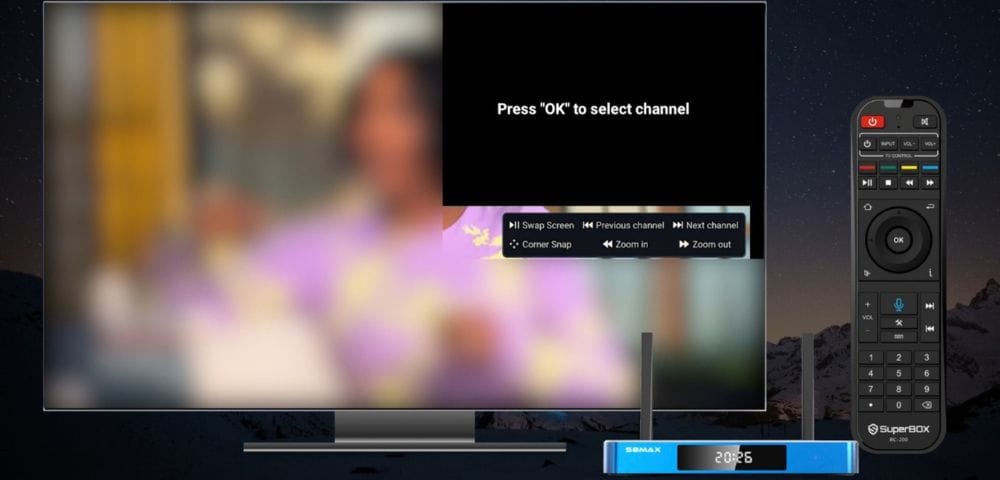
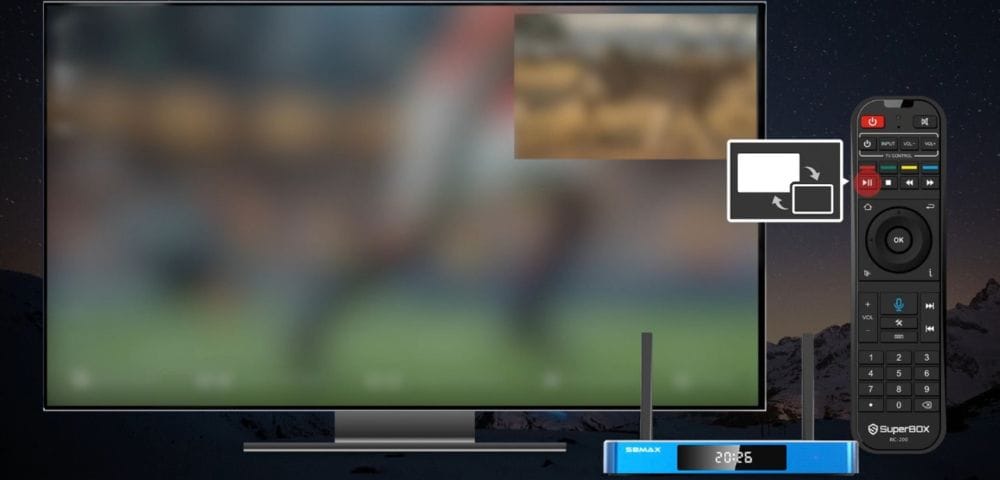
To swap the channels (make the PiP channel full screen and vice versa), press the Play/Pause button on your remote.
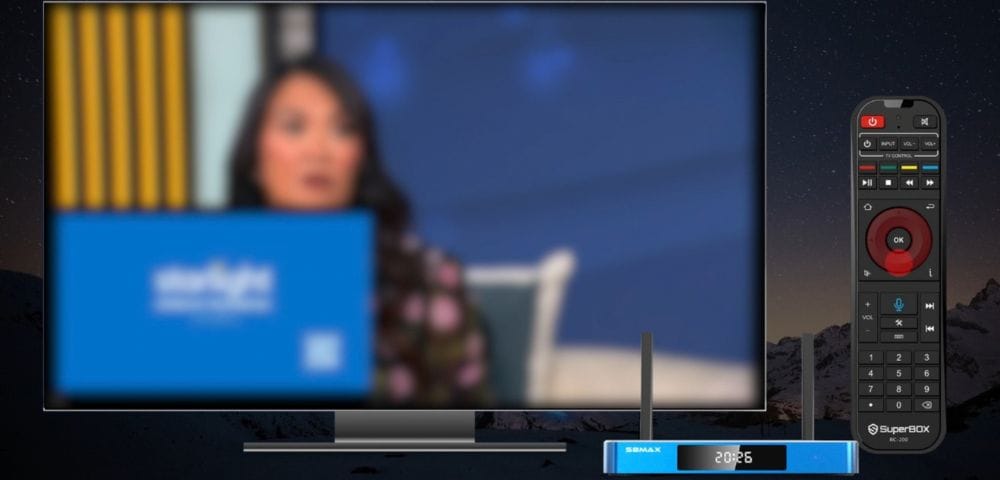
To move the PiP window around the screen, use the Up, Down, Left, and Right arrow buttons.
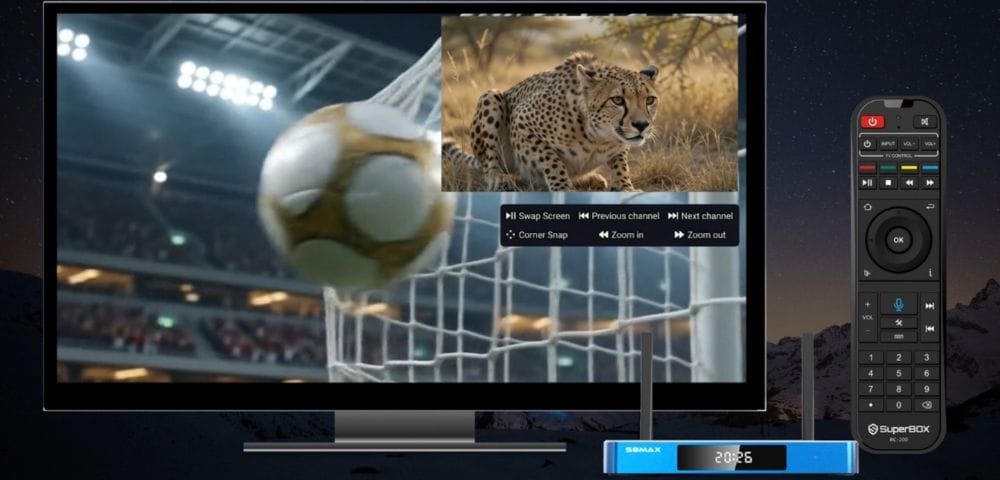
To resize the PiP window, press Forward to make it smaller or Rewind to make it larger.
To jump to the next or previous channel in the PiP window, use the Next and Last buttons.
When you’re done, press Back to exit PiP mode.
One thing to keep in mind, though, is that the S8 Pro and S8 Plus support PiP when watching sports on select channels (over 200 channels), whereas the S8 Max and S8 Ultra can use PiP across all channels.
Mode 2: Multi Screen
Multi Screen, on the other hand, splits the display into two equal windows, which is ideal when you want to give both channels equal attention.
Step 1: From the Settings menu, select Multi Screen and press OK.
Step 2: The screen will divide into two equal-sized windows side by side.
Step 3: Select either window and press OK, then choose the channel you want to play in that window. Repeat for the second window.
Things to know about Multiview on SuperBox:
There are a few things to know about Multiview on SuperBox in this mode as well. Both channels play at the same size, so there’s no primary or secondary screen. To switch audio between the two channels, simply highlight the window you want to hear and press OK. Once you’re finished, press Back to exit Multi Screen mode.
Now that you know how each mode works, here’s a direct comparison to help you decide which one fits your viewing habits.
PiP vs. Multi Screen: Which Should You Use?
Picture in Picture | Multi Screen | |
Layout | Main channel full screen + small overlay | Two equal-sized windows |
Audio | Always from the main channel | Switch between either channel |
Best for | Monitoring a second channel without leaving your main one | Giving equal focus to two channels |
Window control | Move, resize, swap | Fixed split layout |
Use PiP when you want to stay focused on one channel but still need to keep an eye on another, for example, watching a football match while keeping a news ticker running.
On the other hand, use Multi Screen when both channels deserve equal screen time, for example, watching two programs airing simultaneously, or setting up a kids’ channel next to your own.
Beyond the technical setup, it’s worth stepping back to see why this feature matters in everyday use.
Why Multiview on SuperBox Makes a Real Difference
Before the S8 series, watching two channels at the same time meant either two TVs or constant channel switching. The multiview feature consolidates that into a single device and a single screen, which matters more than it sounds:
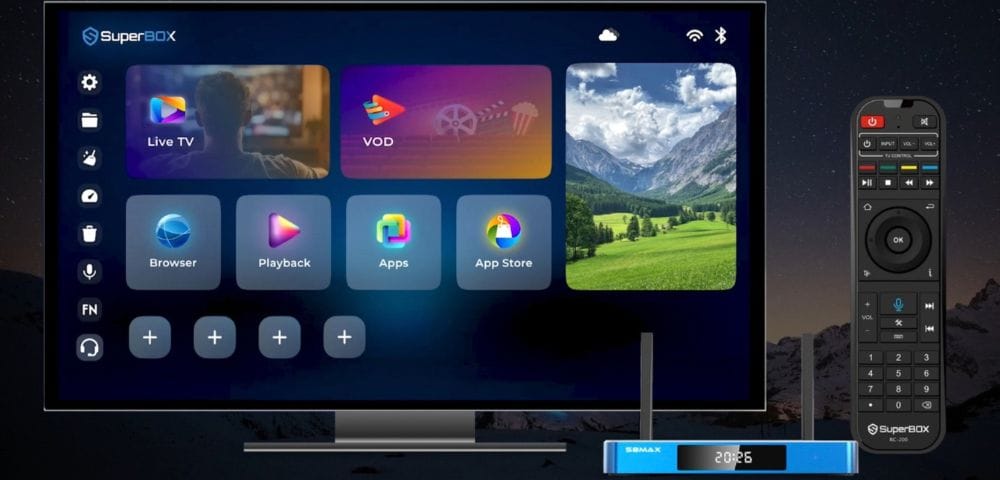
The multiview feature therefore consolidates that into a single device and a single screen, which matters more than it sounds. For sports fans, it means watching two live games without missing a moment on either. Meanwhile, for families, it means running a kids’ channel alongside your own show, so no arguments are needed. Likewise, for news watchers, it means keeping a news channel running in the corner while watching your main program, and for multitaskers, it means monitoring live events without giving up your current stream.
In addition, combined with the S8’s upgraded streaming system, which eliminates the lag and home screen kicks that older boxes were known for, multiview becomes a genuinely smooth, daily use feature rather than a gimmick.
To wrap up the practical details, here are answers to the questions that come up most often about this feature.
Frequently Asked Questions
Does multiview on SuperBox work on all channels?
It depends on the model. The S8 Max and S8 Ultra support multiview across the full channel list. The S8 Pro and S8 Plus support it on 250+ channels, which covers most mainstream content.
Can I hear audio from both channels at the same time?
No, that isn’t possible. In PiP mode, audio always plays from the main full-screen channel, whereas in Multi Screen mode, you can choose which channel’s audio to hear at any time by pressing OK on that window.
Can I move the PiP window?
Yes, you can. Simply use the arrow buttons on your remote (Up, Down, Left, Right) to reposition the PiP window anywhere on the screen.
Can I resize the PiP window?
Yes, that’s possible too. Just press Forward to make it smaller, or Rewind to make it larger.
How do I swap the PiP channel with the main channel?
Simply press the Play/Pause button on your remote to instantly swap the full-screen and PiP channels.
Do I need an internet connection to use multiview?
Yes, since both channels are live TV streams, a stable internet connection is required. Fortunately, Wi-Fi 6, which is built into all S8 models, helps ensure both streams run smoothly at the same time.
Which SuperBox S8 model is best for multiview?
Overall, the S8 Max (399) is the best value pick for multiview users, since it unlocks full channel access at just 10 more than the S8 Plus, without needing to step up to the Ultra.
Final Thoughts
Multiview on SuperBox S8 is one of the most practical upgrades this generation brings to the table, and importantly, it’s available on every model in the lineup. Whether you go for PiP to keep a secondary channel in the corner, or Multi Screen to split your attention equally, setting it up takes under a minute and works reliably right out of the box.
So if you haven’t tried it yet, open this box, pick a channel, hit the Settings button, and see both modes for yourself. Once you experience this seamless performance from the best iptv provider, going back to a single channel at a time feels surprisingly limiting.
In the end, for most people who care about this feature, the S8 Max is the model to get, thanks to full channel multiview, no restrictions, and the best price to feature ratio in the S8 lineup.