Just got your new box and not sure where to start? This SuperBox S8 setup guide walks you through everything, from unboxing and connecting it to your TV to using advanced features like timeshift, picture-in-picture, multi-screen, and recording. It also covers how to restart and reset the device, plus practical tips to keep it running smoothly for years. The first-time SuperBox S8 setup takes about 10 to 15 minutes.
What’s in the Box: SuperBox S8 Unboxing
Before you begin the SuperBox S8 setup, check that your package includes:
- 1 SuperBox S8 box
- Bluetooth voice remote (the S8 Ultra comes with a backlit remote)
- Power adapter and power cable
- HDMI cable
- User manual / quick start guide
If anything is missing or damaged, contact your seller before continuing.
Step 1: Connect Your SuperBox S8 to the TV
- Place the box in a well-ventilated spot near your TV and router. Avoid enclosed cabinets, because the box needs airflow to stay cool.
- Connect the HDMI cable. Plug one end into the HDMI port on the SuperBox S8 and the other into an available HDMI port on your TV.
- Select the correct input on your TV. Press the Input/Source button on your TV remote and choose the HDMI port you used.
- Plug in the power adapter. The box powers on automatically.
- Connect to the internet. For the most stable connection, plug an Ethernet cable from your router into the box’s LAN port. You can also use Wi-Fi.
You should now see the SuperBox boot screen. Follow the on-screen prompts to choose your language, time zone, and network.
Step 2: Pair the Remote via Bluetooth
The included remote works right away in basic infrared mode, but you need to pair it via Bluetooth to use voice commands and control the box without pointing directly at it.
1. Make sure the box is on and the remote has two AAA batteries installed.
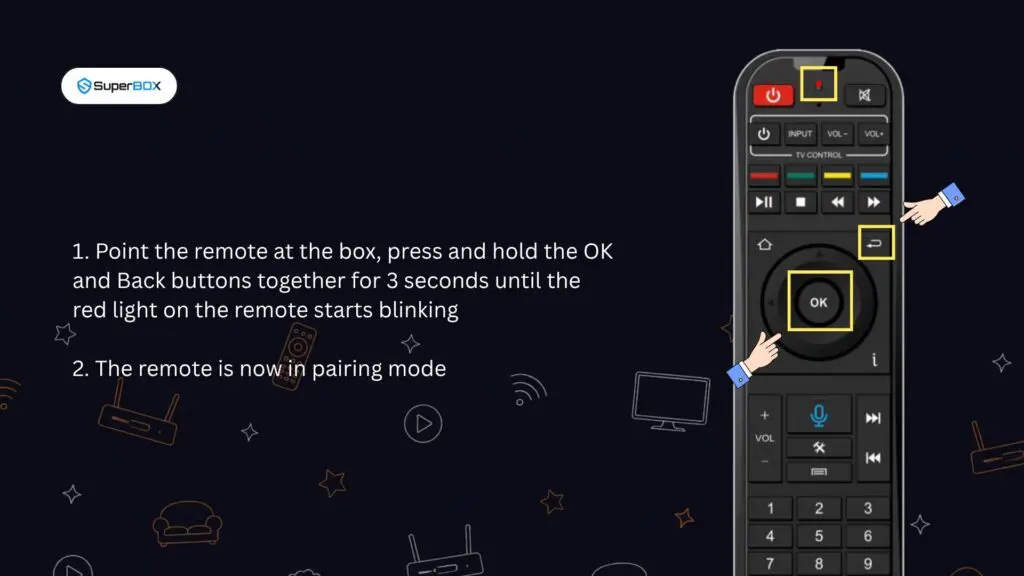
2. Point the remote at the box, then press and hold the OK and Back buttons together for 3 seconds until the red light on the remote starts blinking. The remote is now in pairing mode.
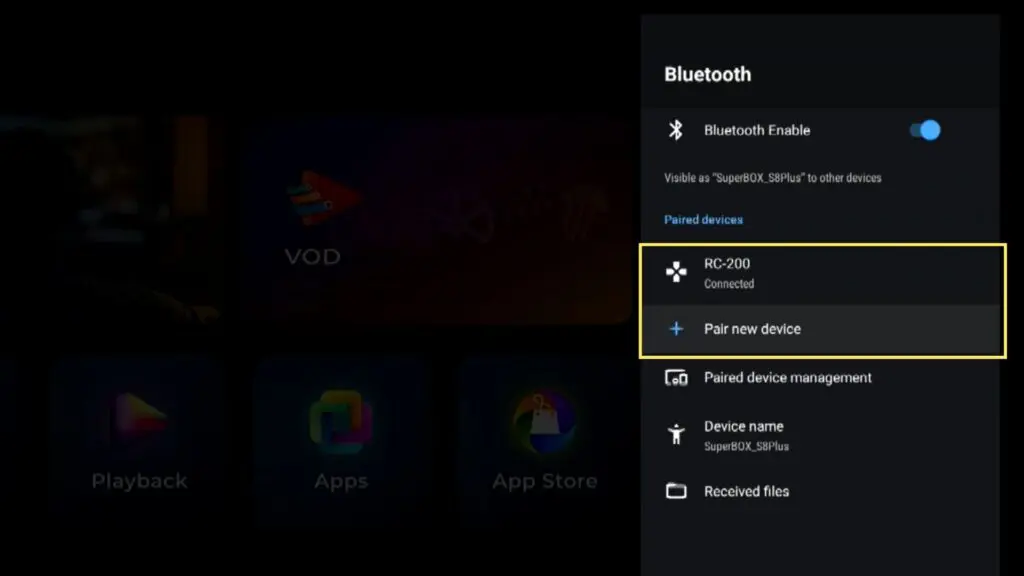
3. From the home screen, go to Settings > Bluetooth > Pair new device, and connect to the remote named RC-200 (on the S8 Pro/Plus/Max/Ultra) or RC-200L (on the S8 Ultra).
4. Once connected, you can press the microphone button on the remote to open apps, change channels, or search by voice.
Turning On the Backlight (SuperBox S8 Ultra)

The S8 Ultra remote has backlit buttons, which makes it easy to use in a dark room. To turn the backlight on or off, press and hold the OK button and the 0 (zero) button together for three seconds. The light usually turns off automatically after a few seconds of inactivity to save battery, and comes back on as soon as you press any button.
Step 3: Use Voice Commands
After the remote is paired via Bluetooth, you can control your box by voice:
1. Press and hold the microphone button on the remote.
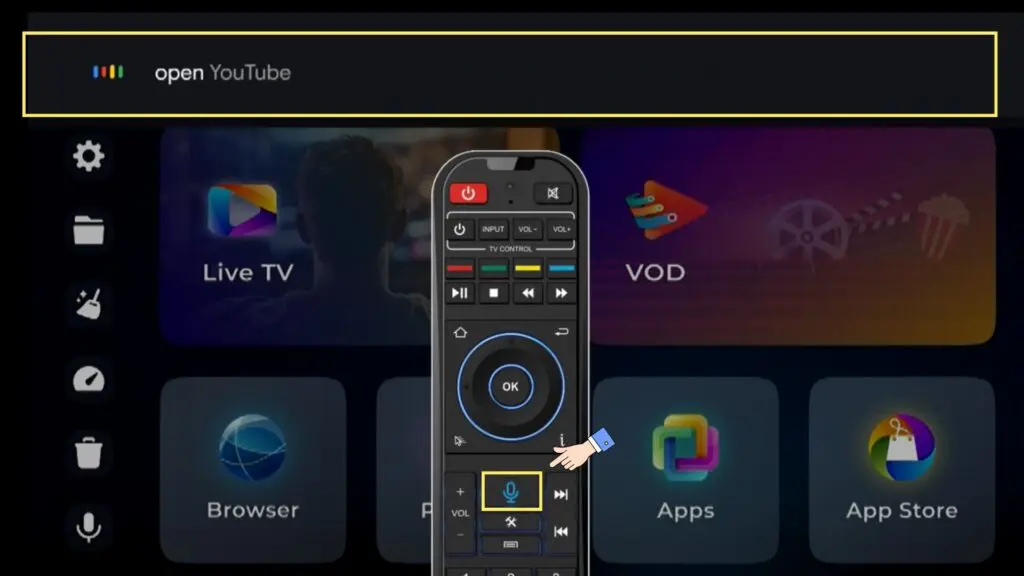
2. Speak clearly, for example, “Open YouTube” or “Open channel 128.”
3. Release the button and wait for the results.
If the box doesn’t respond, check that the remote is still paired over Bluetooth and that the app has microphone permission.
Step 4: Download Your Apps
With the internet connected and the remote paired, the next part of your SuperBox S8 setup is installing the apps you want. The box runs Android, so you can install apps available on the Play Store.
1. From the home screen, select App Store.
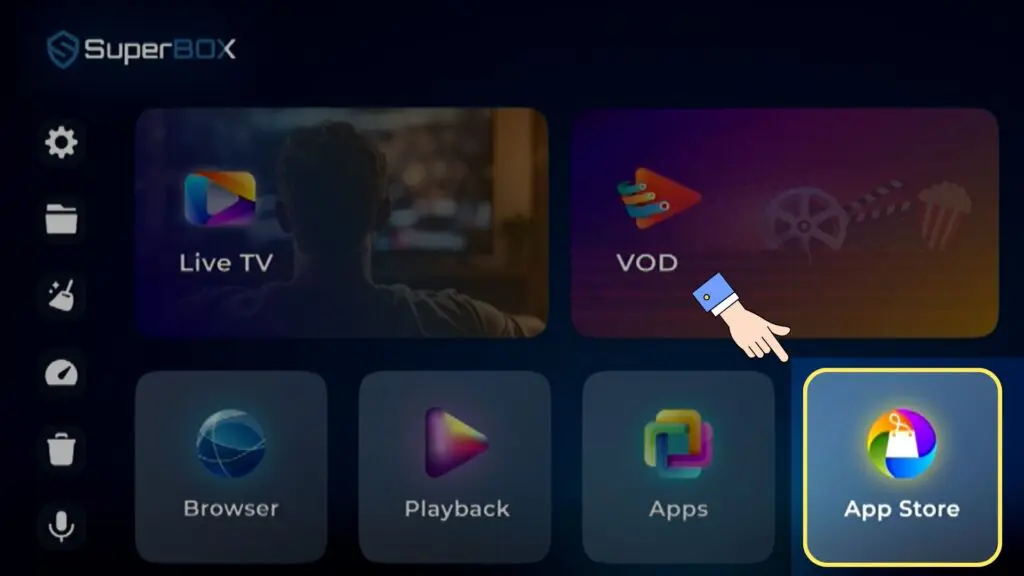
2. Click the App Store icon to download the App Store.
3. Once it’s installed, open it, select the apps you want, and wait for the download to finish. The apps are then ready to open.
Step 5: Explore the Key Features
Once the basic SuperBox S8 setup is complete, it’s time to use the features that make this box stand out.
Timeshift
Timeshift lets you pause, rewind, and resume live TV, so you never miss a moment when you step away.
1. While browsing live TV, look for channels with a white TV icon on the right. These channels support timeshift.
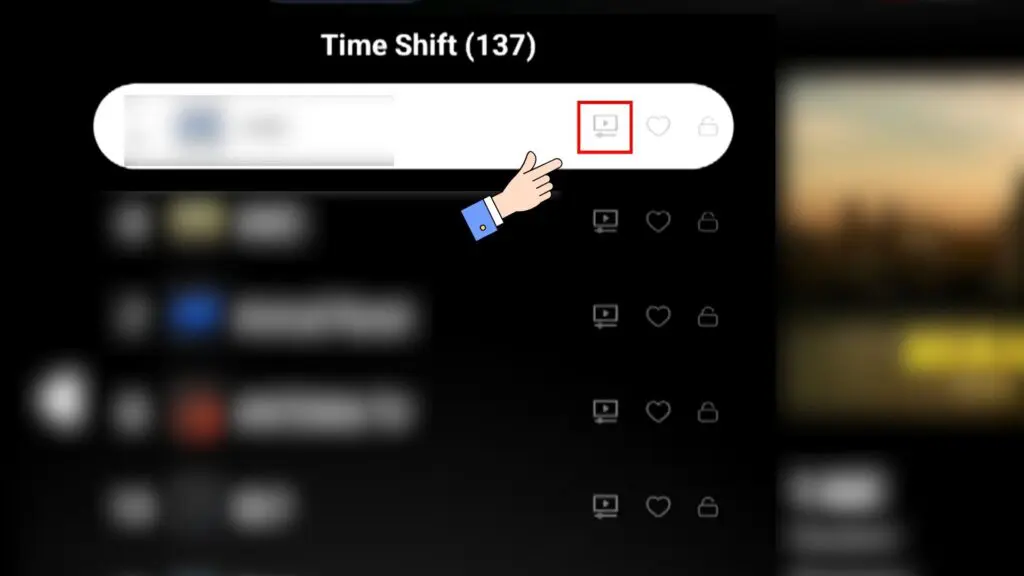
2. Open the channel in full screen. Press and hold the Left arrow to rewind, press OK to pause, and press the Right arrow to fast forward. You can go back up to 7 days.
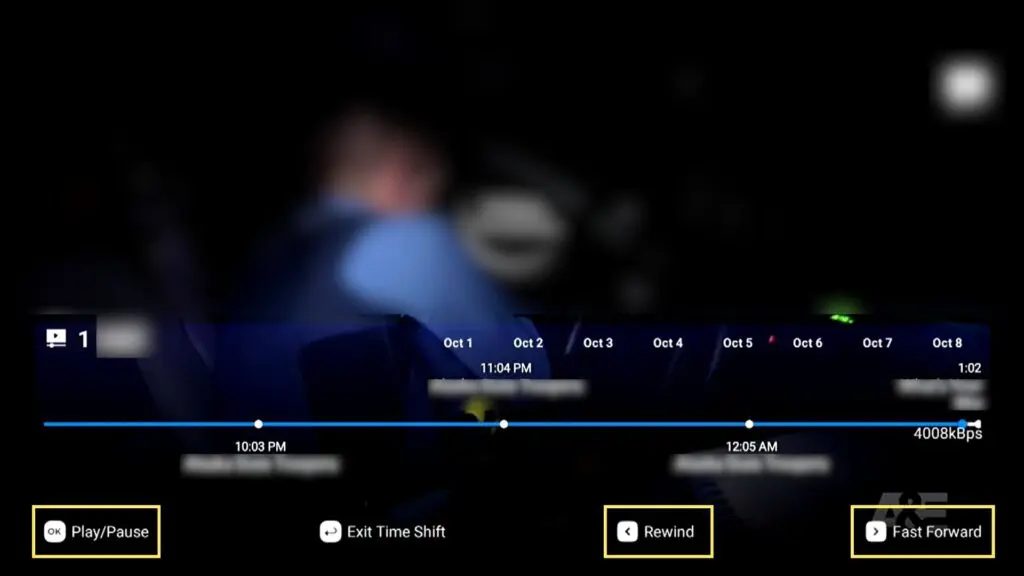
Note: Timeshift buffers video in real time, so a slow connection can cause lag or stuttering.
Parental Control
Protect younger viewers by locking certain channels or categories:
1. Open the live TV app and play the channel you want to lock in full screen.
2. Press the Menu button on the remote to open Settings, then select Parental Control.
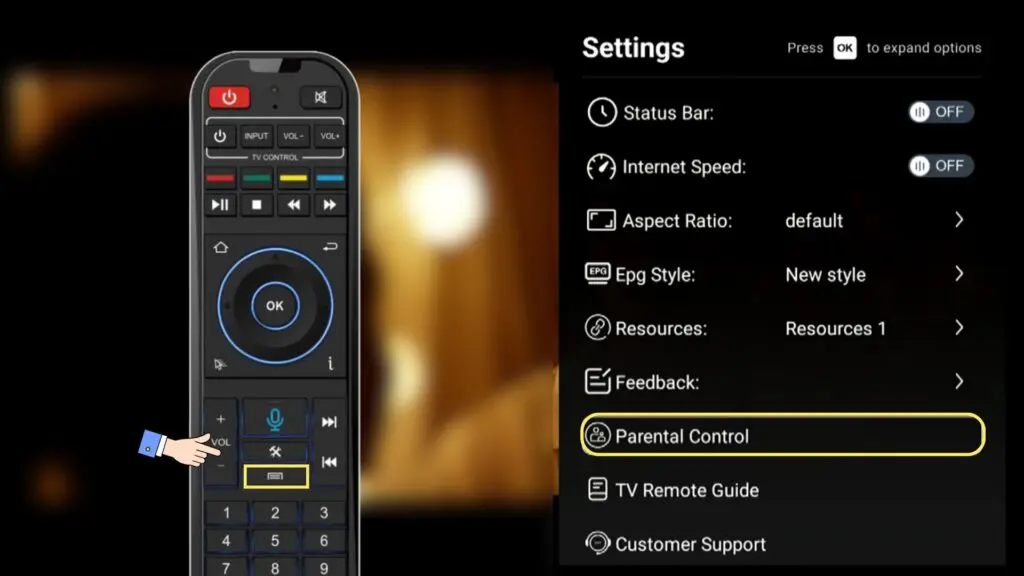
3. Create a numeric PIN and press OK to save.
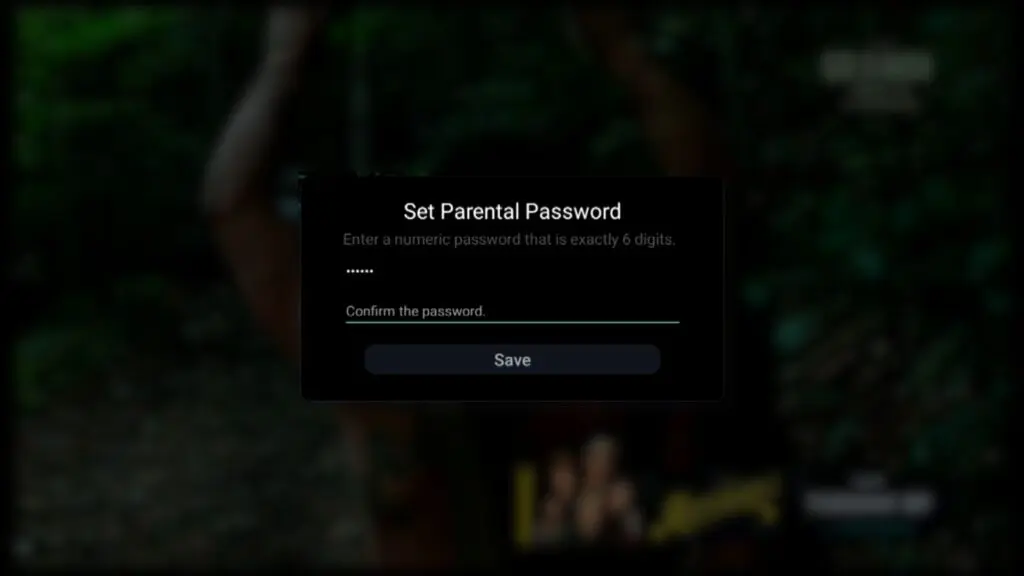
4. The full channel list will appear. Press and hold OK for about 2 seconds on the channel you want to lock, until the unlocked icon changes to a black locked icon.
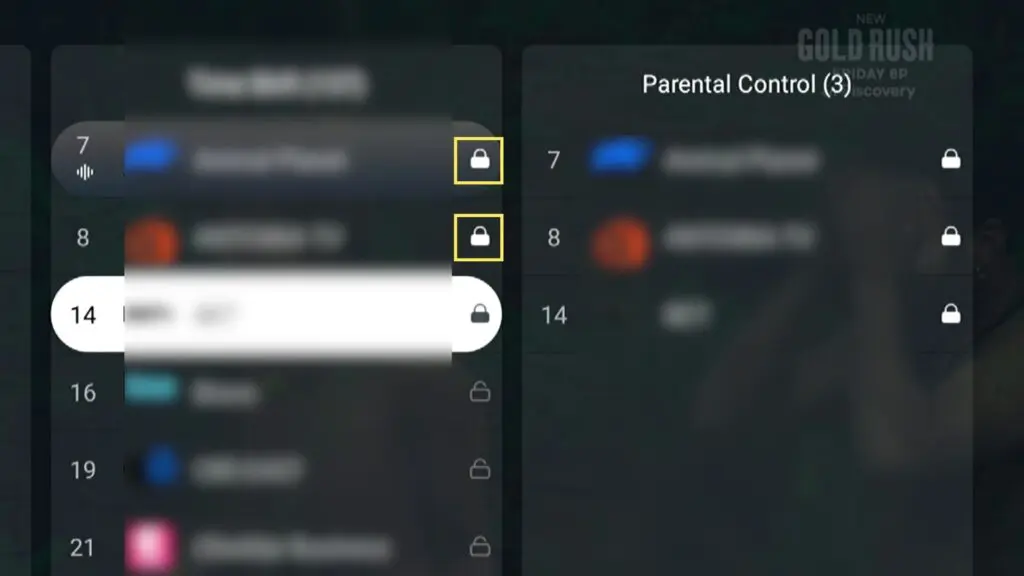
5. Next time you want to open a locked channel, you’ll need to enter your PIN.
Picture-in-Picture (PIP)
PIP lets you watch two channels at once, which is great for following two games at the same time.
1. Choose the channel you want to watch and open it in full screen.
2. Press the Menu button on the remote to open the settings bar on the right.
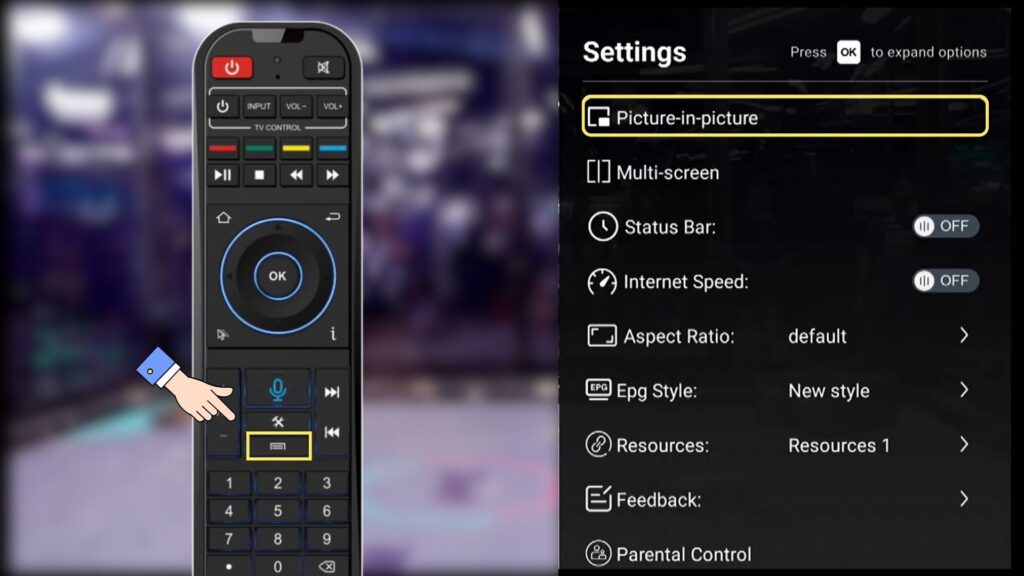
3. Find and select Picture-in-Picture. A second channel will appear in a small window. Press OK to choose the second channel you want to watch. The audio plays from the main (full-screen) channel.
On-screen shortcut hints will show you how to control PIP:
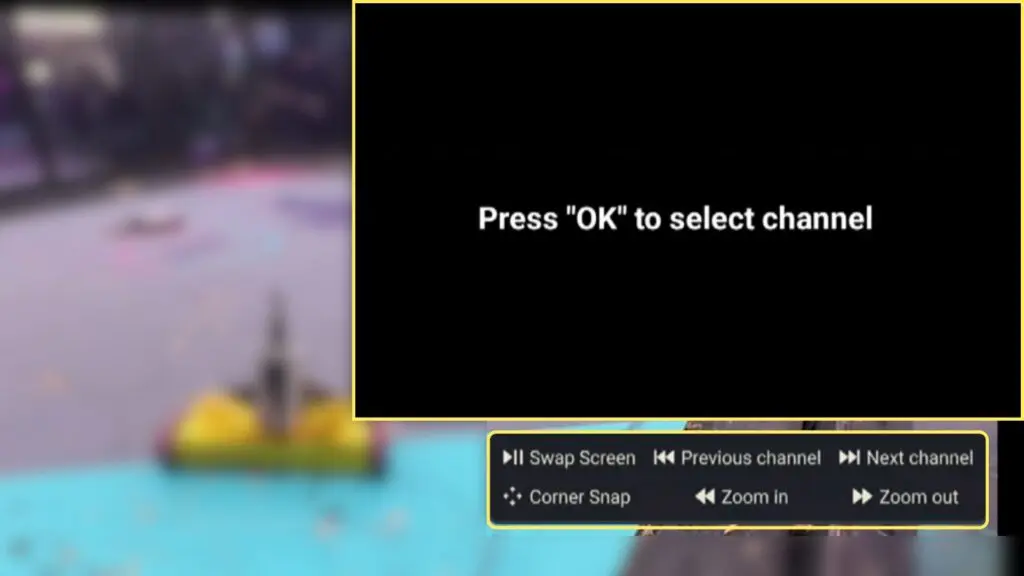
- To change the PIP channel, press OK to bring up the channel list and select a different channel.
- To swap the full-screen channel with the PIP window, press Play/Pause.
- To move the PIP window, use the Up, Down, Left, and Right arrow buttons.
- To resize the PIP window, press Forward to make it smaller or Rewind to make it larger.
- To switch to the next or previous PIP channel, use the Next and Last buttons.
- When you’re finished, press Back to exit PIP mode.
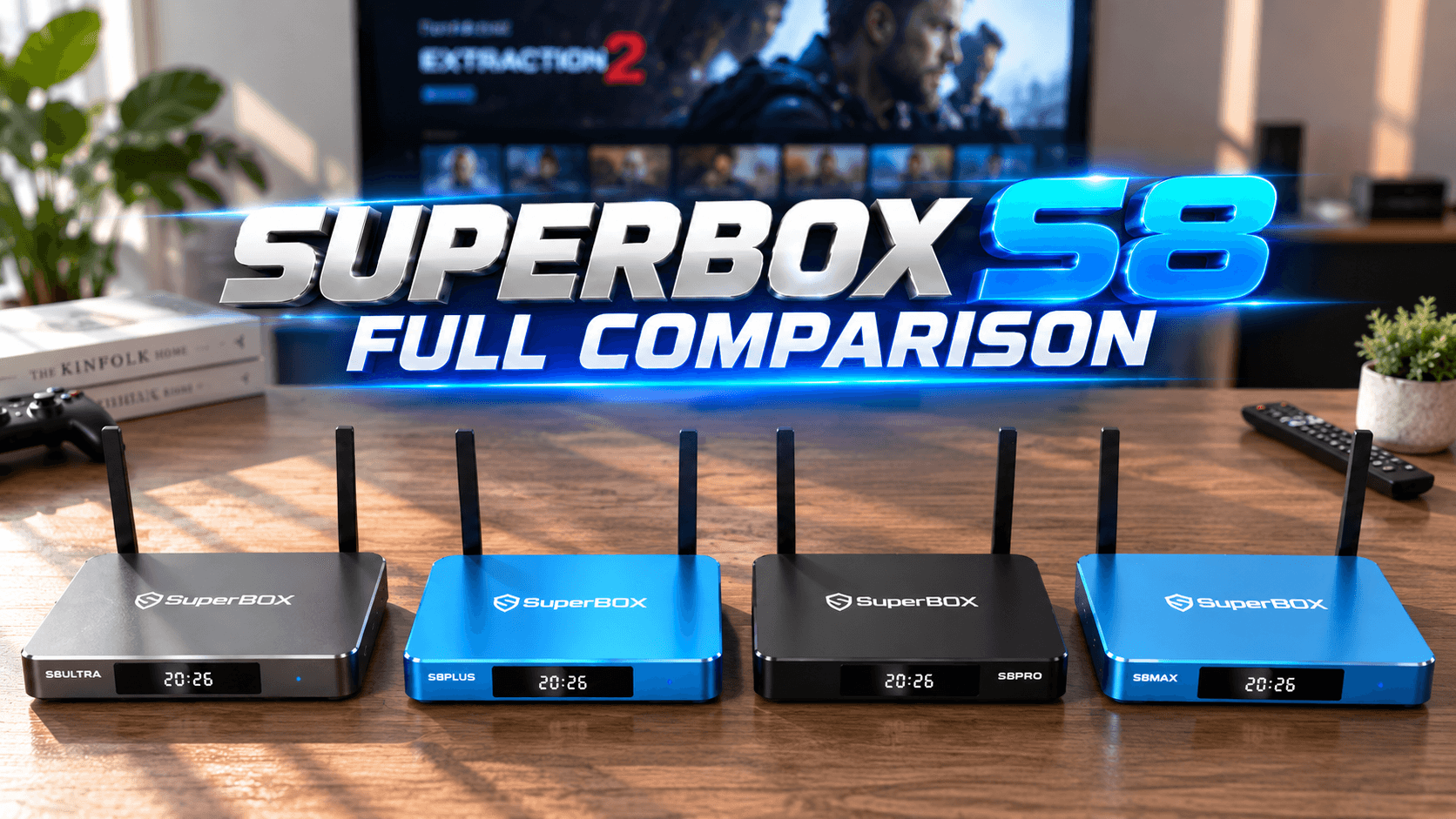
PIP streams two channels simultaneously, so it needs roughly twice the bandwidth of normal viewing. PIP and Multi-screen availability varies by model: the S8 Pro and S8 Plus support these features on a limited number of channels, while the S8 Max and S8 Ultra support them on all channels. To see how the models differ, check out our SuperBox S8 full comparison.
Multi-screen
Multi-screen also lets you watch two channels at once, but the screen is split into two equal halves.
1. Choose the channel you want to watch and open it in full screen.
2. Press the Menu button on the remote to open the settings bar on the right.
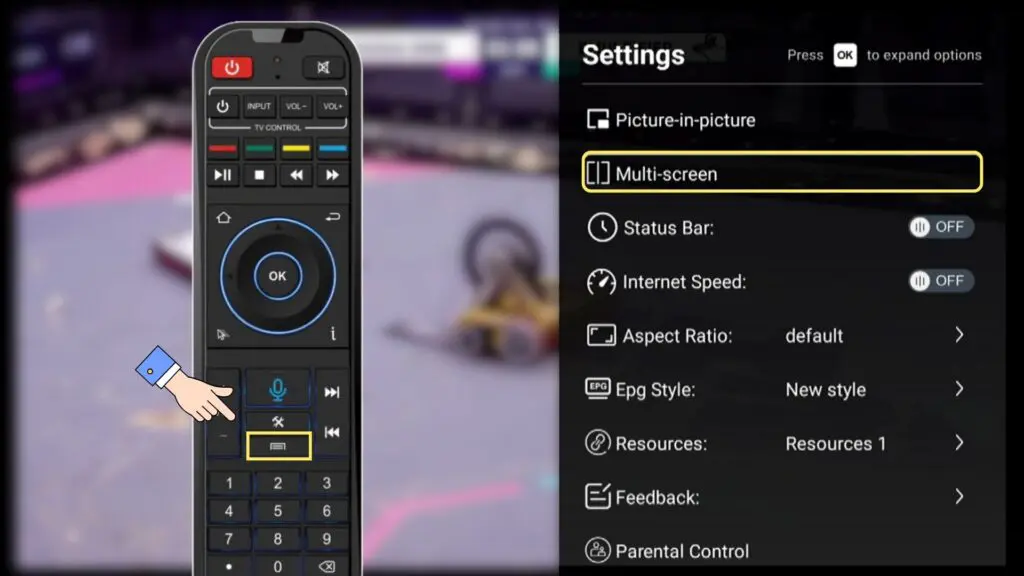
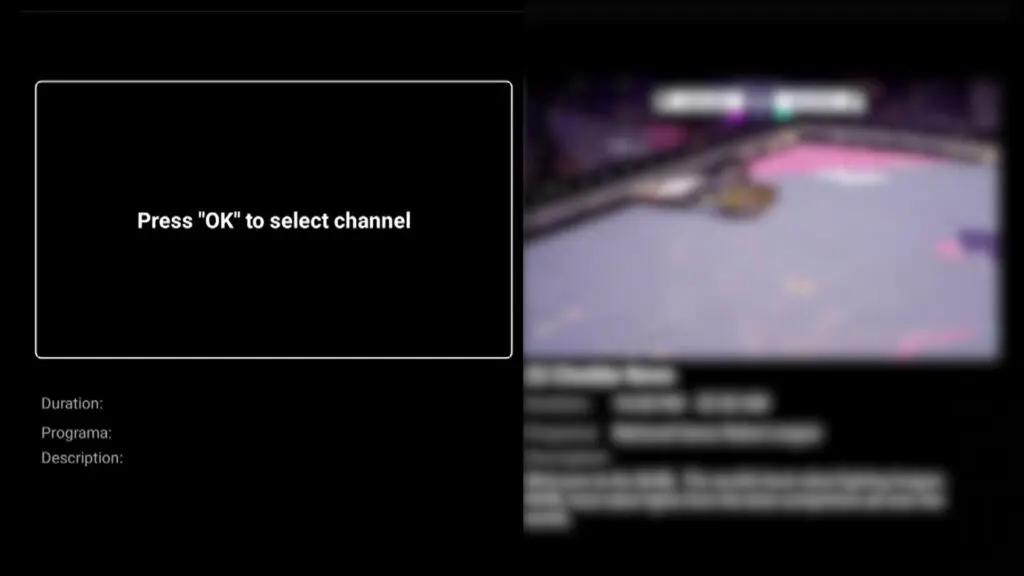
3. Find and select Multi-screen. The screen will split in half with a second channel. Press OK to choose the second channel you want to watch. The audio plays from the currently selected channel.
If you want PIP and Multi-screen on every channel without limits, go for the S8 Max or S8 Ultra. They’re our two best sellers.
Screen Recording
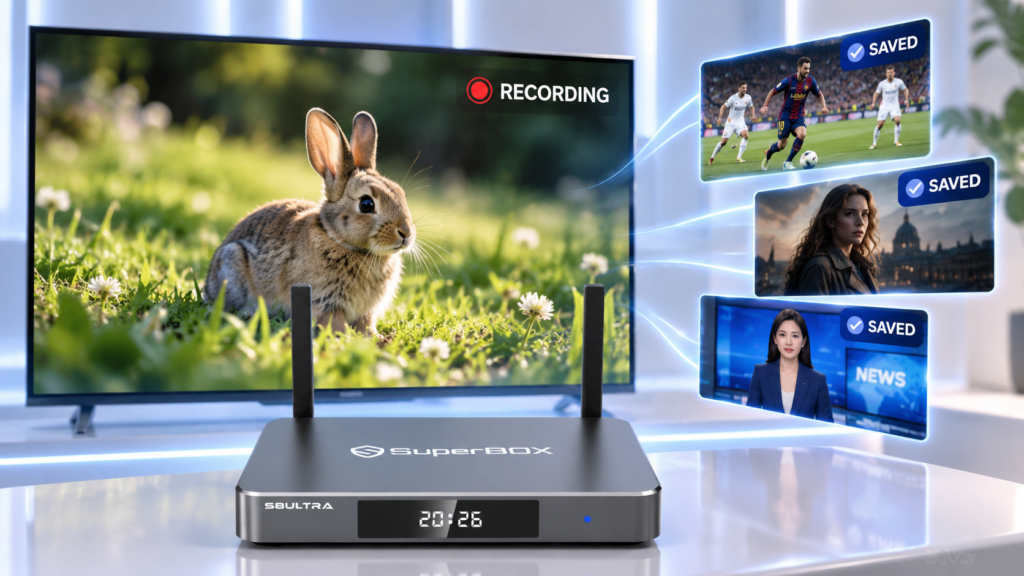
Record your favorite shows and watch them later:
1. Prepare a personal USB drive and plug it into the box’s USB port. The S8 Pro, S8 Max, and S8 Ultra have USB-C and USB 3.0 ports, while the S8 Plus has USB 2.0 and USB 3.0 ports.
2. Open the App Store and download the Recorder app.
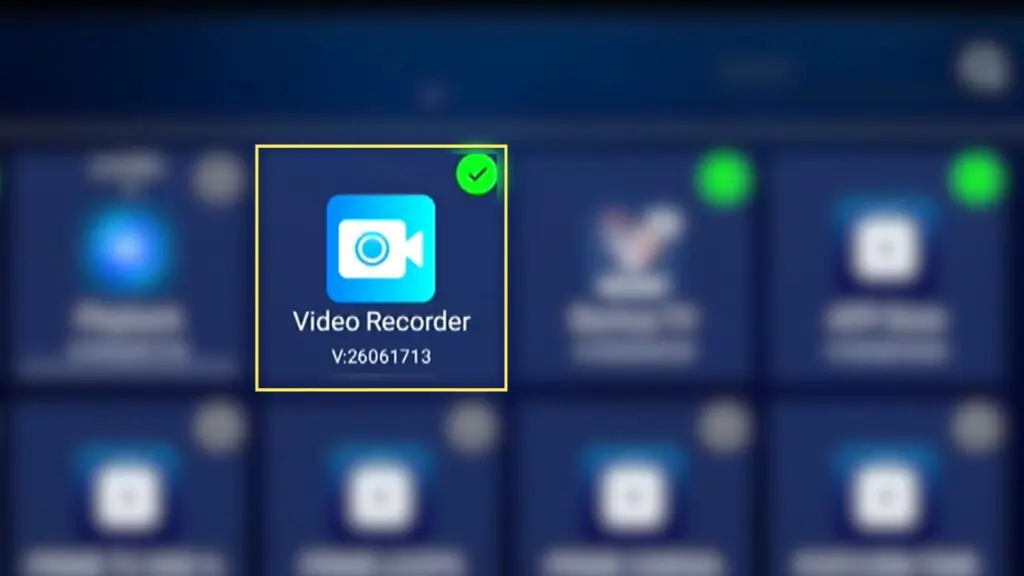
3. Open Recorder and press OK to start screen recording. A 3-second countdown will begin before recording starts. The app records everything displayed on the screen, so play whatever you want to capture while recording. To stop recording, open the Recorder app again and press OK.
4. Find your recordings in the Recorder app. Note that the USB drive must be plugged in for them to appear.
You can also plug the USB drive into other devices like a laptop or PC to watch your recordings later. If you plug the USB drive into another device, to view the recordings, you can find the files under: Android → data → com.myvideo.recorder → files → Movies
Keep in mind that recording must be started manually, since scheduled recording isn’t available yet.
Using an older SuperBox model from before the S8? There are other ways to record your screen. Check out our guide on how to record on SuperBox.
How to Restart and Reset Your SuperBox S8
Restarting the Box
A restart fixes most small issues like lag, frozen apps, or buffering.
- Soft restart: Go to Settings > Device Preferences > Restart, or simply turn the box off and on again.
- Hard restart: Unplug the power cable, wait 30 seconds, then plug it back in.
Factory Reset
A factory reset erases all your settings, installed apps, and data, returning the box to its original state. Only use it when restarting and clearing the cache don’t solve the problem, or when customer support advises you to.
- Go to Settings > Device Preferences > About > Factory Reset, or press the key combination .0.0.0.0.0. on the remote.
- Confirm your choice.
- Wait for the box to reboot, then repeat the SuperBox S8 setup steps above.
Some models support a hardware reset using a pin in the reset hole. Check your manual before trying this.
Important Tips for Using Your SuperBox S8
A smooth SuperBox S8 setup is just the beginning. Following these tips will help your box stay fast and last longer.
Clear the cache regularly
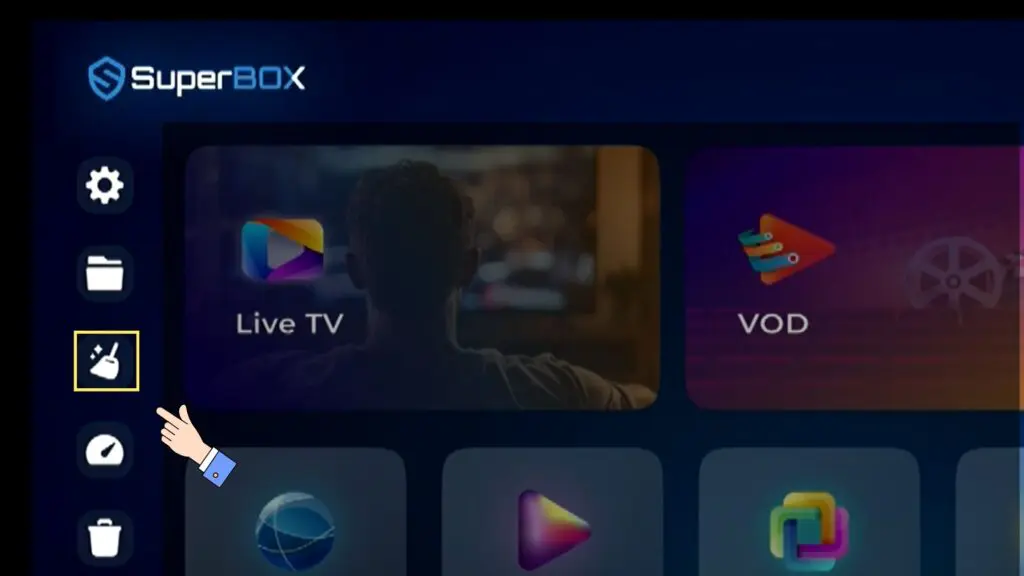
Over time, apps build up cached data that slows the box down. On the home screen, select the broom icon in the left menu bar to automatically clear the general cache.
To clear the cache for a specific app, go to Settings > Apps > See all apps, choose the app, and select Clear cache. Doing this once a week keeps things running smoothly. Don’t tap “Clear data” unless you want to reset that app completely.
Don’t run it 24/7
Like any electronic device, the SuperBox S8 builds up heat and memory load when it runs non-stop. Turn it off when you’re not using it, especially overnight. Restart it from time to time. Even if you turn it off daily, a full restart every few days clears the memory and fixes minor glitches before they become noticeable.
Use a fast, stable internet connection
For a stable experience, you’ll need at least 160 Mbps. Real-time features like live TV, timeshift, PIP, recording, and voice commands are especially demanding. When possible, use a wired Ethernet connection instead of Wi-Fi, and limit other heavy downloads on your network while streaming.
Keep it away from water
The SuperBox S8 is not waterproof. The surface can resist light splashes and handle mild humidity, but water getting inside can permanently damage the device. Keep drinks away from it and don’t place it in a bathroom, near a window that gets rain, or anywhere very damp.
Replacing cables is easy
If the power cable or HDMI cable gets damaged, you don’t need to buy an official replacement. Any cable of the same type and specifications will work. For power, match the voltage and amperage of the original adapter (check the label on it). For HDMI, a standard high-speed HDMI cable works fine, and an HDMI 2.0 or higher cable is recommended for 4K content.
Frequently Asked Questions About SuperBox S8 Setup
How long does the SuperBox S8 setup take?
Most people finish the initial setup in 10 to 15 minutes, including connecting the box, pairing the remote, and connecting to the network.
Why won’t my remote pair during the SuperBox S8 setup?
Try new batteries, move closer to the box, and repeat the pairing combination (hold OK + Back for 3 seconds). If it still doesn’t work, restart the box and try again.
What internet speed do I need for the SuperBox S8?
At least 160 Mbps is recommended, especially if you use real-time features like timeshift, PIP, and recording.
Will a factory reset delete my recordings?
No. A factory reset will erase your Favorites, saved Categories, Shortcuts, and other personalized settings stored on the device. However, your recordings will not be deleted, since recordings on the SuperBox S8 are stored on the connected USB drive.
Can I use a different HDMI or power cable?
Yes, as long as it’s the same type and matches the original specifications.
Conclusion
That’s everything you need for a smooth SuperBox S8 setup, from unboxing and connecting to the TV to mastering voice control, timeshift, PIP, multi-screen, parental controls, and recording. Clear the cache regularly, give the box a rest and an occasional restart, keep it dry, and use a fast internet connection, and your SuperBox S8 will deliver a great viewing experience for a long time.
Ready to get your SuperBox S8 from our official website? The S8 Series is now ready to ship. Fill out the form below to place your order. Wholesale buyers are also welcome to contact us for competitive bulk pricing.