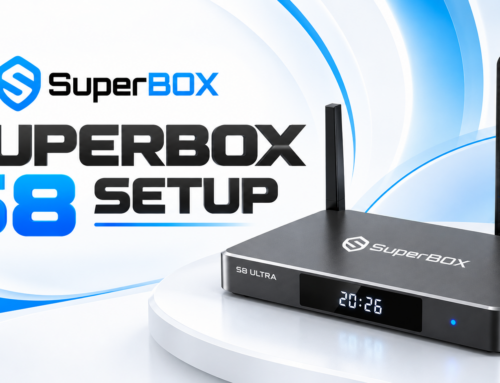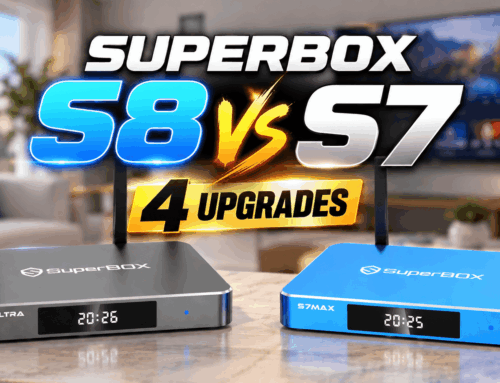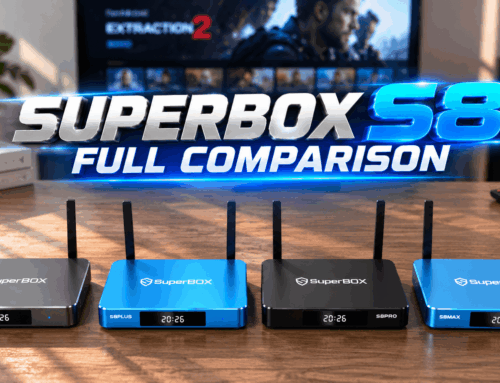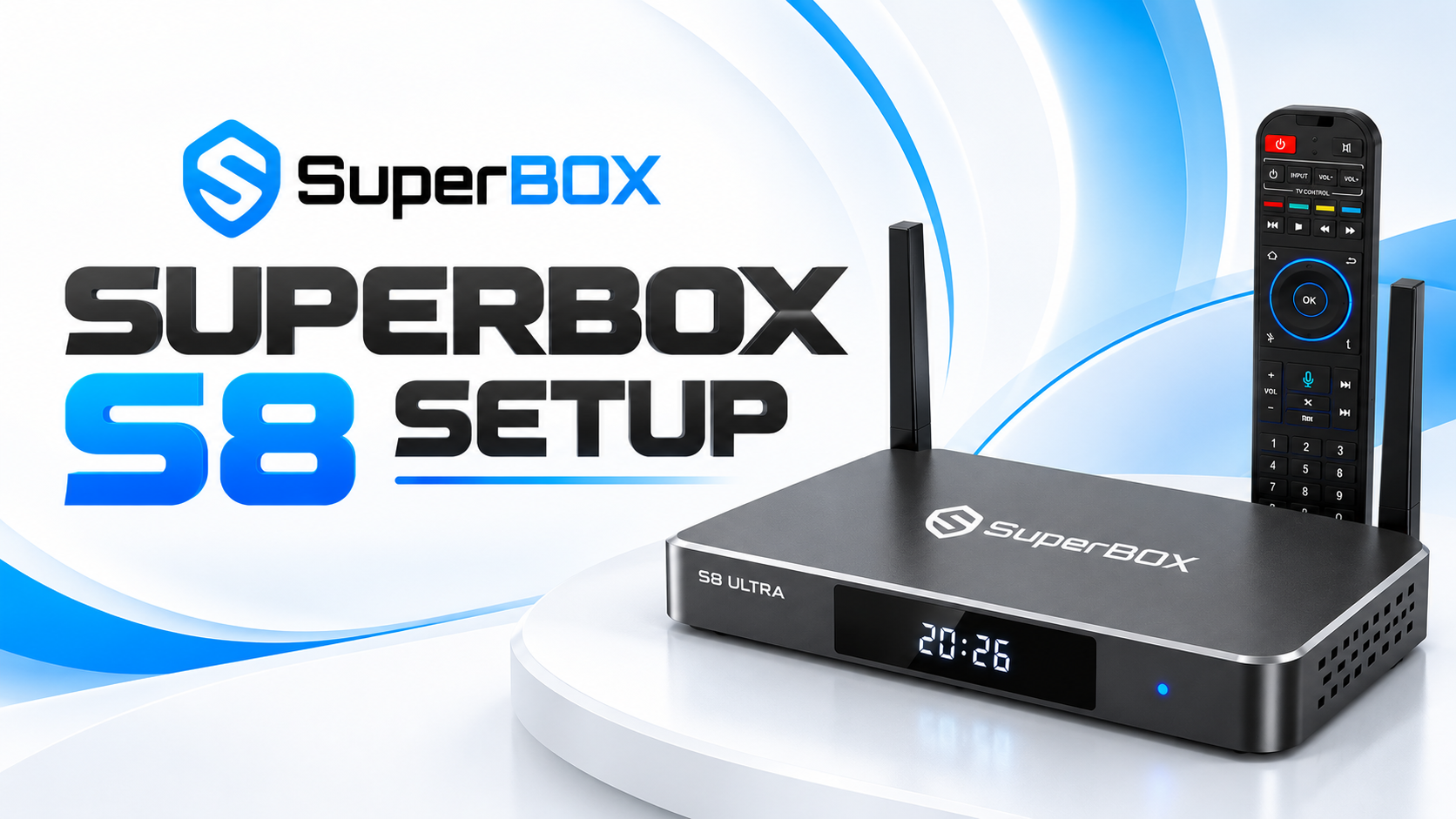

Looking for a way to record on SuperBox? Whether you want to save live sports, news, or your favorite shows, having a recording option makes it easier to watch important content later. The SuperBox S8 series now comes with a built in Recorder feature that lets you record content directly through the box. For users with older SuperBox models, you can still record TV content with an external HD video capture device. In this guide, we will show you how to record on SuperBox, including the built in recording method on the S8 and the external recording method for older models.
Does SuperBox Have a Built-In Recording Feature?
Yes, the SuperBox S8 series includes a built in Recorder feature that allows users to save TV content directly to the device. Older SuperBox models do not have the same built in recording function, but users can still record what appears on their TV screen with an external HD video capture device.
SuperBox also provides other convenient ways to watch previously aired content without creating a separate recording. Depending on the model, users can access previously aired programs through the built in replay function or use Time Shift to pause, rewind, and fast forward live TV.
- Playback: Currently includes 86 popular channels, allowing users to rewatch past content from the last 7 days. This app is available on all SuperBox models.
- Time Shift: Lets users pause, rewind, and fast-forward live TV for up to 8 hours. This feature is only available on the SuperBox S6 series (like the S6 Pro).
If your goal is to permanently save a specific program, however, the recording function on the SuperBox S8 provides a more direct solution.
How to Record on SuperBox
The recording process depends on which SuperBox model you have. The SuperBox S8 series has a built in Recorder, while older models require an external HD video capture device.
How to Record on SuperBox S8 Series
The SuperBox S8 makes it possible to record TV content directly through its built in Recorder feature. You only need a compatible USB drive with enough available storage space for the recording.
Here is how to record on SuperBox S8:
- Connect your USB drive to the USB port on the right side of the SuperBox S8. Open the built in Recorder feature on the box.
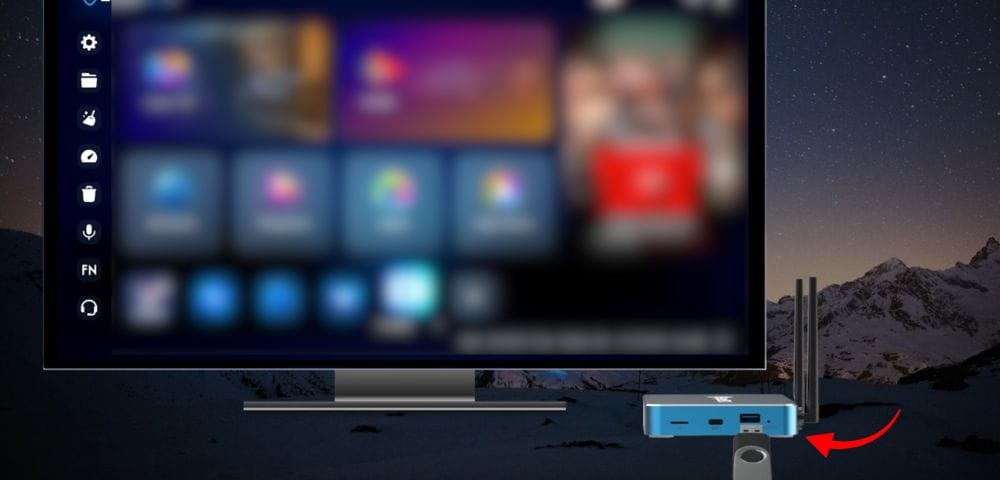
2. Check the remaining storage space on your USB drive before starting. The available recording time depends on the capacity and remaining storage of the USB drive.
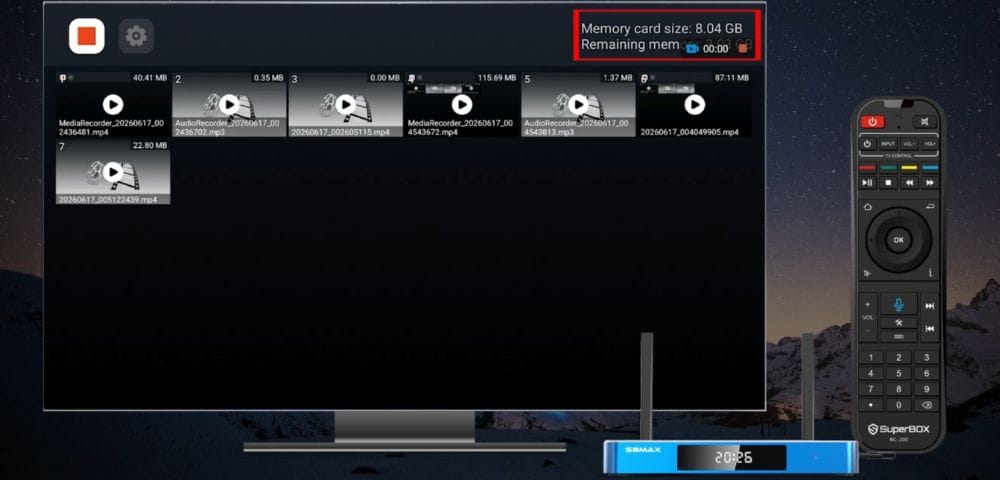
3. Press the Record button in the upper left corner of the screen.
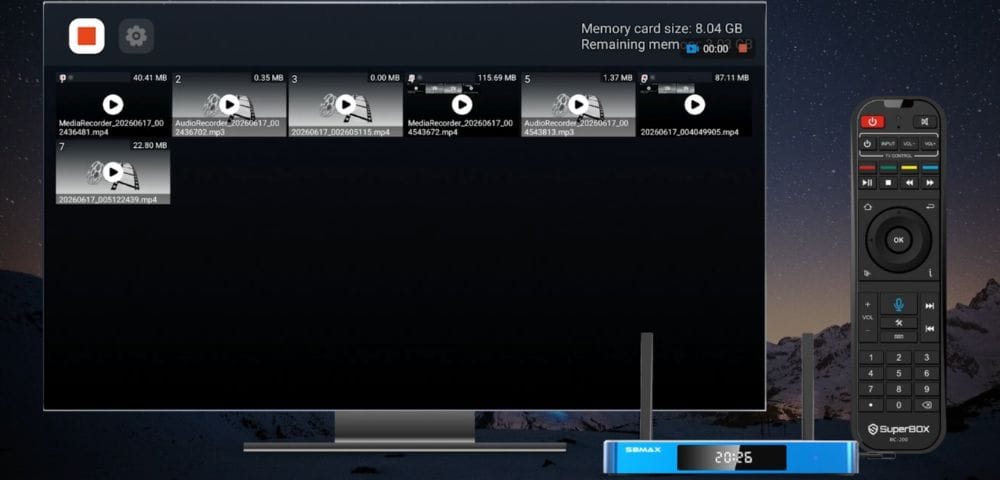
4. Once recording starts, a red recording indicator and timer will appear in the upper right corner. This lets you confirm that the program is being recorded.
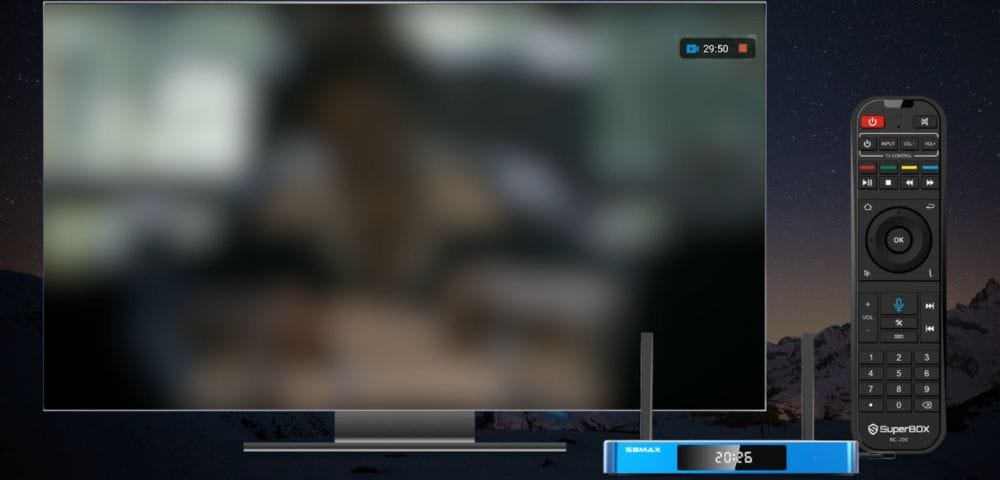
5. You can continue watching your program while the SuperBox S8 records in the background. When you are finished, return to the Recorder feature and press Stop.
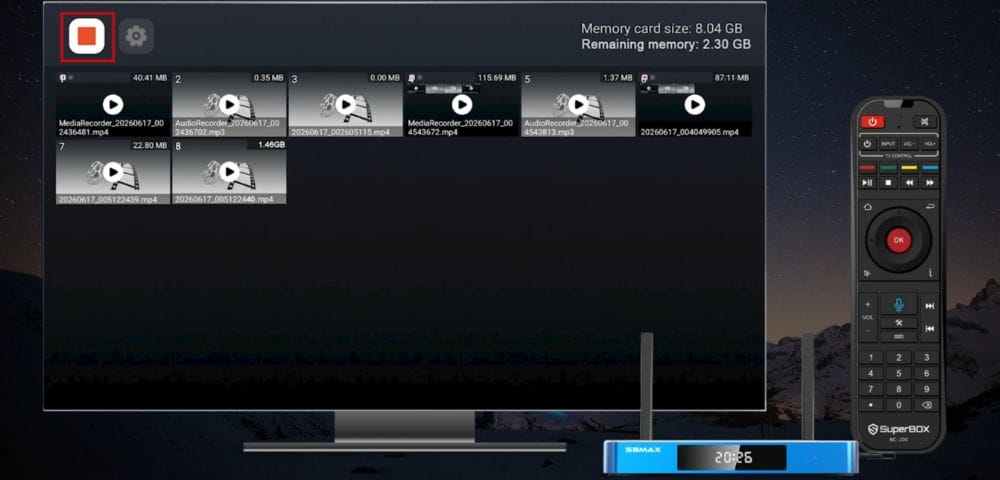
6. Your recorded videos will then be stored in the recording section, where you can access them later.
This makes the SuperBox S8 a more convenient option for users who regularly want to record live TV, save a specific program, or keep an important event for later viewing.
How to Record on Older SuperBox Models
If you are using an older SuperBox model without a built in recording feature, you can still record on SuperBox with an external HD video capture device. These devices are commonly available for around $20 – $55 and work by capturing the video signal displayed on your TV. The recorded video can then be saved directly to a USB flash drive connected to the capture device.
What You’ll Need to Record on SuperBox:
- 1 HD video capture box with a power supply, HDMI input and output ports, a physical record button, and a USB host
- 1 USB flash drive
- 2 HDMI cables (SuperBox packages usually include one already)
- A TV and your SuperBox (of course)
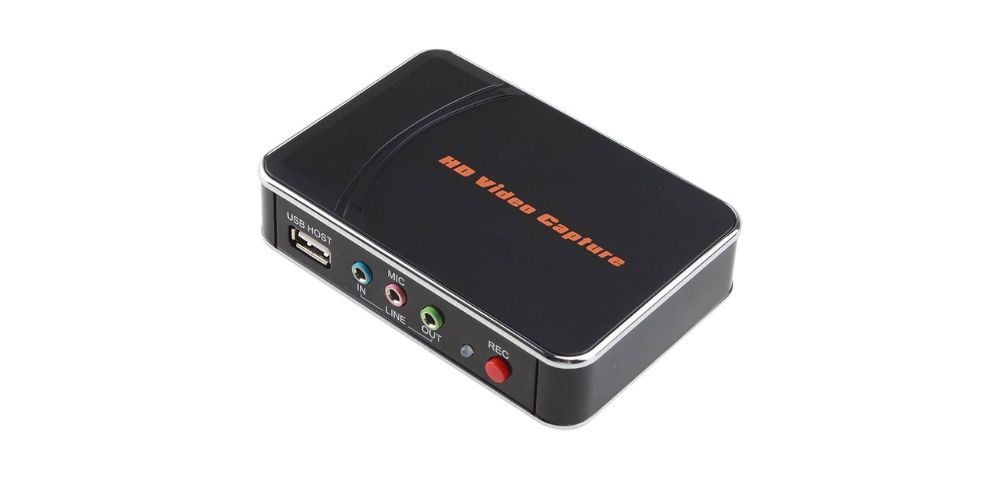
EZCAP HD Video Capture
How to Set It Up:
- Connect one end of an HDMI cable to the HD input on the capture box, and the other end to your SuperBox.
- Connect another HDMI cable to the HD output on the capture box, and plug the other end into your TV.
- Make sure both the SuperBox and the video capture box are plugged into power.
- Insert your USB flash drive into the USB host port of the capture box.
- Turn on your TV and SuperBox.
- Press the Record button. If the button turns red, it means recording has started. To stop recording, press the button again. If the button changes from red to blue/green, your video has been successfully saved to the USB.
Important Limitations and Considerations
There are a few things to consider when using an external video capture device to record on SuperBox. Unlike the built in Recorder on the S8, the recorded video is saved to a separate USB flash drive connected to the capture device. You may then need another compatible device to access and play the recorded file.
The setup also involves several cables and external hardware. Avoid touching or moving the capture box while recording because this could interrupt the video signal and affect the final recording. For users who only want to go back and watch recently aired programs, the built in replay and Time Shift functions can be more convenient when supported by the model. They do not require the additional setup associated with an external capture device.

For older users or anyone who prefers a simpler setup, the built in Recorder on the SuperBox S8 removes the need for an additional capture box, extra HDMI connections, and a separate recording button.
Lastly, if you choose to record on SuperBox and share the recorded material online, copyright restrictions may apply depending on the content and how it is used. SuperBox is not responsible for the misuse of recorded content. Users are responsible for ensuring that their use and distribution of recorded material complies with applicable copyright laws.
Our Final Thoughts
The best way to record on SuperBox depends on the model you are using. The SuperBox S8 series (like the S8 Ultra)provides a built in Recorder feature that lets you save TV content using a USB drive, making the recording process more straightforward. For older SuperBox models without built in recording, an external HD video capture device remains an option. It requires additional hardware and setup, but it can capture content displayed on your TV and save the recording to a USB drive.

SuperBox is one of the most popular Android TV boxes in the U.S., known for its user-friendly interface, smooth streaming experience, and powerful built-in features like Playback, Time Shift, and Voice Control. If you’re new to the brand or wondering which model suits your needs best, check out our guide on the best SuperBox to buy to make an informed choice.