
If you’ve ever had a movie pause mid-scene, a live game freeze at the worst moment, or a 4K stream suddenly drop to blurry quality, you’re not alone. Buffering is one of the most common frustrations in modern home entertainment. Many people assume the problem is their streaming device. Others blame their internet provider. But in reality, the issue usually comes down to one thing: your network setup. If you want to optimize WiFi for streaming, you need more than just a fast internet plan. You need a stable, properly configured connection that can handle real-time video data without interruptions.
This guide will walk you through exactly how to optimize WiFi for streaming, from basic fixes to advanced improvements, so you can eliminate buffering and get the performance your setup is actually capable of.
Why Streaming Buffers Even With Fast Internet
One of the biggest misconceptions is that a higher internet speed automatically means better streaming. In reality, streaming performance depends more on stability than raw speed.
For example:
- You might have a 300 Mbps plan
- But if your connection fluctuates between 20 Mbps and 300 Mbps
- Your stream will still buffer
Streaming platforms require a consistent data flow, not just high peak speeds. To properly optimize WiFi for streaming, you need:
- Low latency (fast response time)
- Minimal packet loss
- Stable throughput
Common Causes of Buffering
Understanding these factors is the first step to optimizing your network.
- Router placed too far from your TV
- Thick walls or furniture blocking signal
- Too many devices connected at once
- Interference from nearby networks
- Using outdated routers
- Congested WiFi channels
What Internet Speed Do You Actually Need?
To optimize WiFi for streaming effectively, you need to match your speed with your usage.
Streaming Quality | Minimum Speed | Recommended |
HD (1080p) | 5–8 Mbps | 15 Mbps |
4K UHD | 25 Mbps | 50+ Mbps |
Live TV/Sports | 10–20 Mbps | 30+ Mbps |
For the best experience on SuperBox, we recommend a minimum of 50 Mbps internet speed, especially if you want smooth and stable streaming across different types of content. If you frequently watch live sports, you may need even higher speeds, as live streams are more sensitive to network fluctuations and require faster, more consistent bandwidth. Similarly, features like Time Shift also rely heavily on a strong and stable connection, since they continuously buffer and store content in real time.
Common Ways to Optimize WiFi for Streaming
Below are real-world methods professionals use to optimize WiFi for streaming in home environments.
Optimize Router Placement for Maximum Signal Efficiency
Router placement is the most overlooked performance factor in home networks. WiFi signals travel outward in all directions. When your router is placed:
- On the floor
- Behind a TV
- Inside a cabinet
- In a corner of the house
The signal becomes uneven and weak.
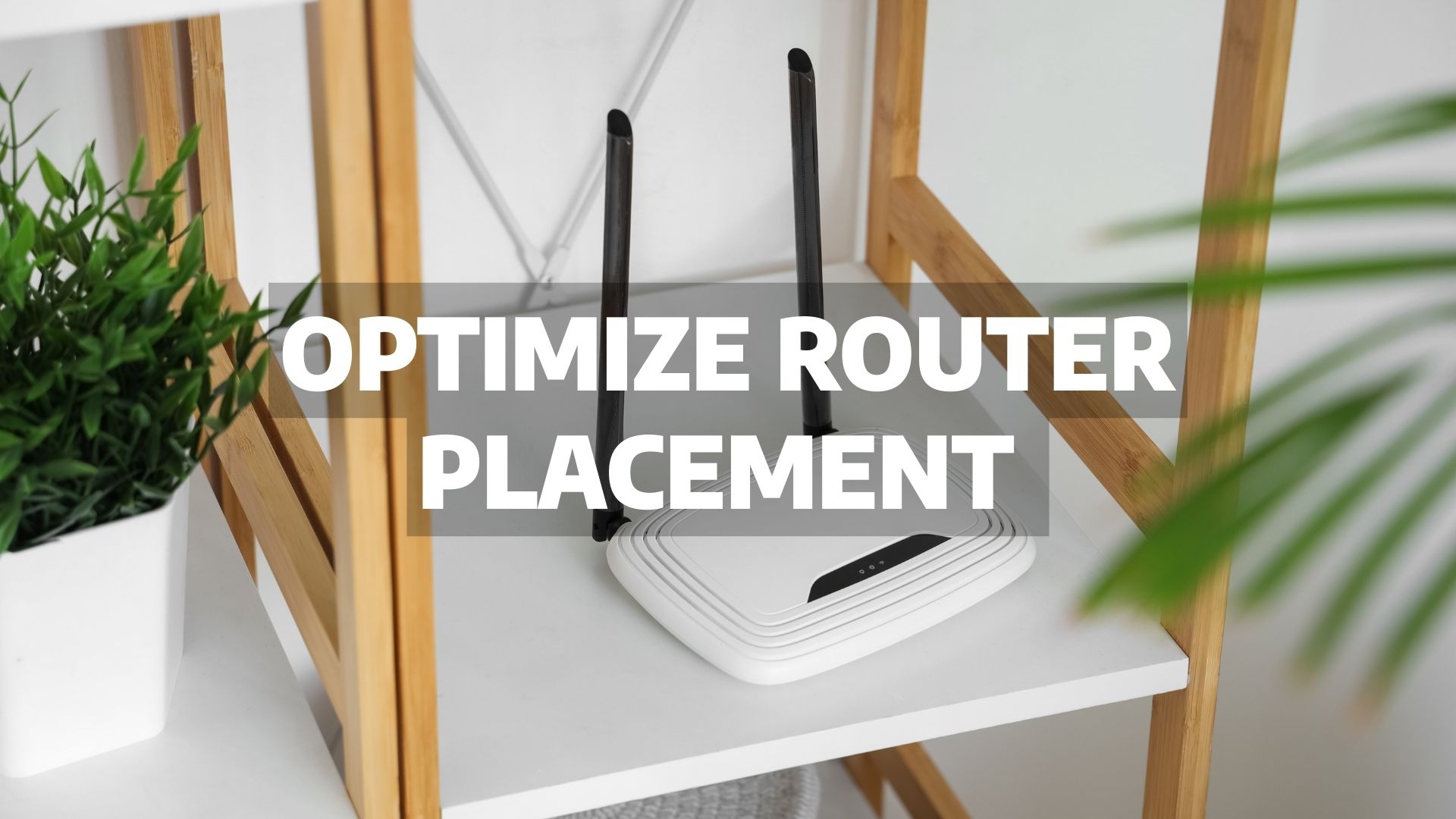
Imagine your router is placed in a living room cabinet, while your streaming device is in a bedroom across two walls. Even if you pay for 300 Mbps internet, signal loss through walls can reduce effective throughput to under 40 Mbps by the time it reaches your device.
Professional Recommendation
- Place the router in a central area
- Keep it elevated (desk height or higher)
- Avoid enclosed furniture
- Keep distance from microwaves, refrigerators, and metal
A simple relocation can improve signal consistency by 20–50% instantly.
Choose the Correct Frequency Band (2.4GHz vs 5GHz)
Modern routers broadcast two frequency bands. Understanding how they behave is critical if you want to optimize WiFi for streaming.
2.4GHz
- Longer range
- Better wall penetration
- Slower speeds
- More interference (crowded frequency)
5GHz
- Higher speeds
- Lower interference
- Shorter range
If your streaming box is in the same room as your router, 5GHz will almost always provide smoother playback for HD and 4K. However, if your device is two rooms away, the 5GHz signal may weaken, causing unstable performance. In that case, switching to 2.4GHz may actually stabilize the connection even if the raw speed is lower. The goal is not “highest speed.” The goal is stable throughput. That’s how you truly optimize WiFi for streaming.
Use Ethernet When Possible (Eliminate Wireless Variables)
Wireless networks are convenient, but they are inherently unstable compared to wired connections. Interference, signal reflection, neighboring networks, and device congestion all affect WiFi performance. A wired Ethernet connection removes all of these variables.
Why Professionals Prefer Wired Connections
- Zero signal interference
- Consistent latency
- Stable bandwidth
- Full utilization of the internet plan
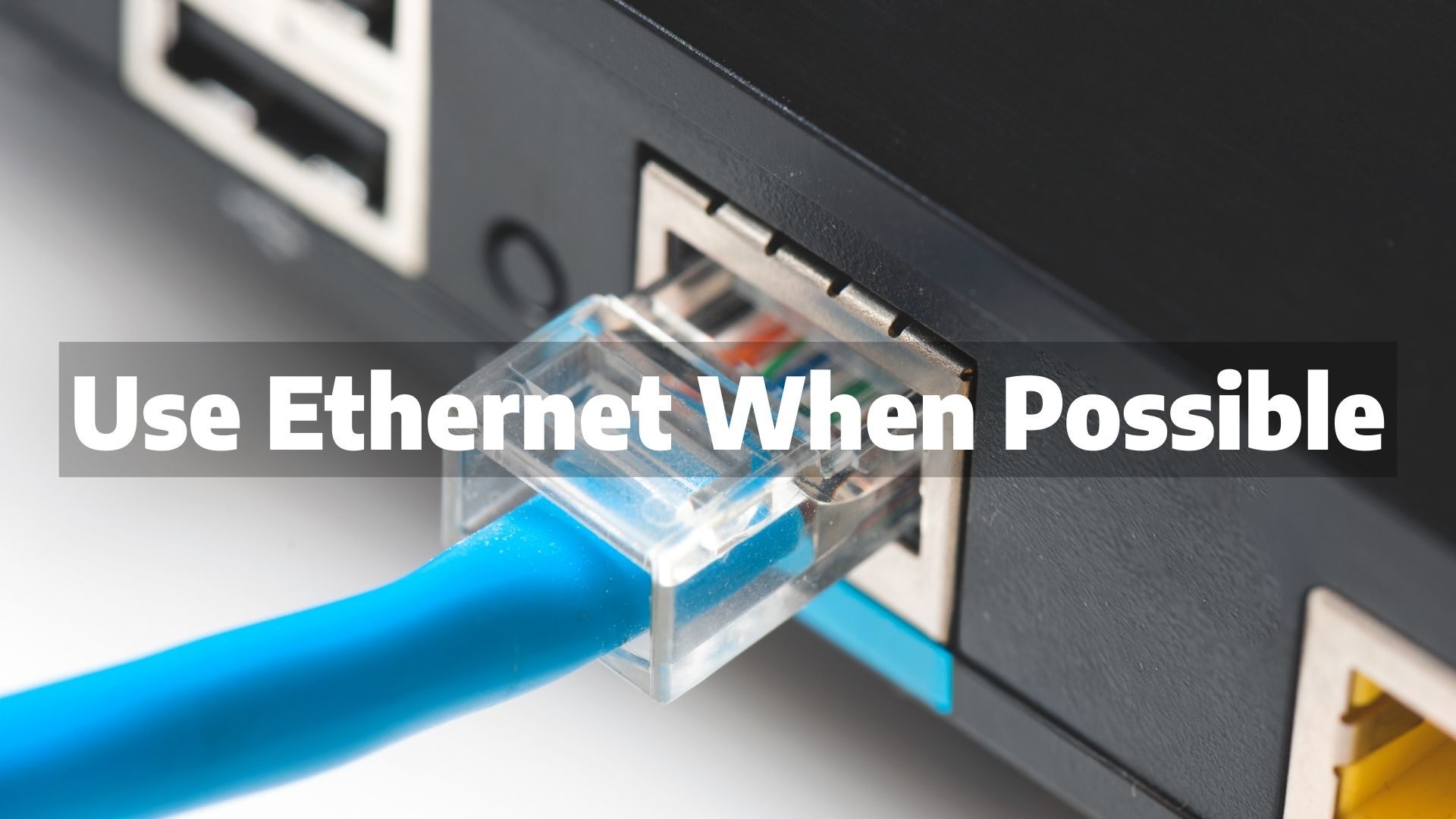
In many homes, simply switching a streaming device from WiFi to Ethernet instantly solves buffering problems. For users serious about performance, this is the most reliable way to optimize WiFi for streaming. Even a 50 Mbps plan can outperform a 300 Mbps WiFi connection if the wired connection is stable.
Upgrade Outdated Router Hardware
Many performance issues are hardware limitations, not internet problems. If your router:
- Is older than 4–5 years
- Does not support WiFi 6
- Struggles with multiple devices
- Frequently disconnects
It may be the bottleneck. Newer routers include:
- WiFi 6 for improved efficiency
- MU-MIMO for multi-device handling
- Beamforming for targeted signal strength
- Better processors and memory
In busy households with 10–20 connected devices, older routers cannot efficiently distribute bandwidth. Upgrading hardware is one of the most impactful long-term strategies to optimize WiFi for streaming.
If you’re considering a high-quality streaming device, it’s worth choosing something built for stable performance from the start. Devices like the SuperBox streaming box are designed with WiFi 6 dual-band support (2.4GHz + 5GHz), which helps reduce interference, improve speed consistency, and deliver smoother playback—especially in busy households.
Reduce Network Congestion and Competing Traffic
Bandwidth is shared among all connected devices. If someone in your home is:
- Downloading large files
- Uploading cloud backups
- Gaming online
- Streaming simultaneously
Your streaming device competes for resources.
Managing congestion is essential if you want to consistently optimize WiFi for streaming in multi-device environments. A 100 Mbps internet plan sounds sufficient. But if three devices each use 25 Mbps simultaneously, your available bandwidth drops quickly. Add overhead and instability, and buffering becomes likely.
How to Fix It
- Disconnect unused devices
- Enable QoS (Quality of Service) settings
- Prioritize streaming devices in router settings
- Schedule large downloads during off-hours
Consider a Mesh WiFi System for Larger Homes
Single-router setups struggle in:
- Multi-floor homes
- Long hallways
- Houses with thick walls
Signal strength weakens the farther it travels. Mesh systems use multiple nodes to distribute coverage evenly.
Why Mesh Works Better Than Extenders
Traditional extenders rebroadcast a weakened signal. Mesh systems create a unified network with coordinated traffic management. For large homes, mesh is often the only realistic way to optimize WiFi for streaming across multiple rooms without dead zones.
Optimize Your Streaming Device Itself
Network optimization alone isn’t enough. Your streaming device can also introduce performance issues. Common Device-Level Problems
- Overloaded cache
- Outdated firmware
- High video resolution settings
- Background app processes

Professional Practice
- Restart devices weekly.
- Keep firmware updated.
- Ensure HDMI cables support required resolution.
- Avoid forcing 4K if your connection cannot sustain it.
When both network and device are optimized together, you create a system that is properly designed to optimize WiFi for streaming under real-world conditions.
Advanced Optimization (Real-World Fixes That Actually Work)
Here are three highly effective methods you can use to optimize WiFi for streaming in real-world scenarios:
Adjust Resolution Settings Based on Your Network
Many users manually set their streaming quality to HD or 4K, assuming higher is always better. In reality, this can cause constant buffering if your network cannot sustain that bitrate.
What to Do
- If your device has Auto resolution, use it
- Or manually set resolution slightly lower (e.g., 1080p instead of 4K)
- Avoid forcing max quality if your connection is inconsistent
Lowering resolution slightly often results in smoother playback with zero buffering, which is far more important than raw quality when trying to optimize WiFi for streaming.
Test With and Without VPN (Depending on Your Device)
VPN usage is often misunderstood in streaming setups.
Two Common Cases
Case 1: Device requires VPN
Your ISP may restrict some streaming services or content sources. In these cases:
- Without VPN → buffering, slow loading, or failure to load
- With VPN → stable playback

Case 2: Device does NOT require VPN
Using a VPN, especially a low-quality or free one, can:
- Reduce speed
- Increase latency
- Cause buffering
Practical Approach
- If you’re not using a VPN → try turning one on
- If you are using a VPN → test turning it off
This trial-and-error method is one of the fastest ways to diagnose issues and optimize WiFi for streaming based on your specific setup. If you’re using a SuperBox device and are unsure which VPN to choose, you can check our guide on VPN for SuperBox to find compatible options and setup instructions.
Switch Networks to Identify the Real Problem
- Connect your streaming device to a different WiFi network (or mobile hotspot)
- Test the same content again
What the Results Mean
- If buffering still happens → issue may be the device or app
- If buffering disappears → issue is your network
This is a simple but powerful way to isolate the problem and avoid wasting time adjusting the wrong thing. It’s also a key step professionals use to accurately optimize WiFi for streaming.
Final Thoughts: Optimize WiFi for Streaming
Buffering isn’t just about internet speed, it’s about how your entire network is set up.
When you properly optimize WiFi for streaming, you unlock the full potential of your internet and your streaming device. Whether you’re watching movies, live sports, or on-demand content, a stable connection makes all the difference.
The good news? Most of these fixes are simple, affordable, and can dramatically improve your experience. Take the time to optimize your setup, and buffering will quickly become a thing of the past.