
Seeing a blue screen when turning on your SuperBox can be frustrating, especially when you’re expecting a smooth streaming experience. The good news is that in most cases, this issue is not serious and can be fixed in under a minute. In this guide, we’ll explain why the SuperBox blue screen happens and show you exactly how to fix it step by step.
Why Does the SuperBox Show a Blue Screen
Specifically, the SuperBox launcher is designed to update automatically whenever a new version is available. These updates usually happen in the background without interrupting your experience. However, there are times when the device is turned on right in the middle of an update. When this happens, the system may not fully load the home interface. As a result, your screen may appear blue or blank because the launcher hasn’t finished initializing yet.

In most cases, this issue isn’t caused by a serious system failure. If the problem were caused by a larger system error, our team would quickly identify it and release a fix. Instead, the SuperBox blue screen is usually just a temporary launcher glitch — a minor conflict between the update process and system startup.
How to Fix SuperBox Blue Screen
There are two ways to fix SuperBox blue screen. The first method is quick and recommended.
Method 1: Update LauncherX
Follow these steps to fix the issue:
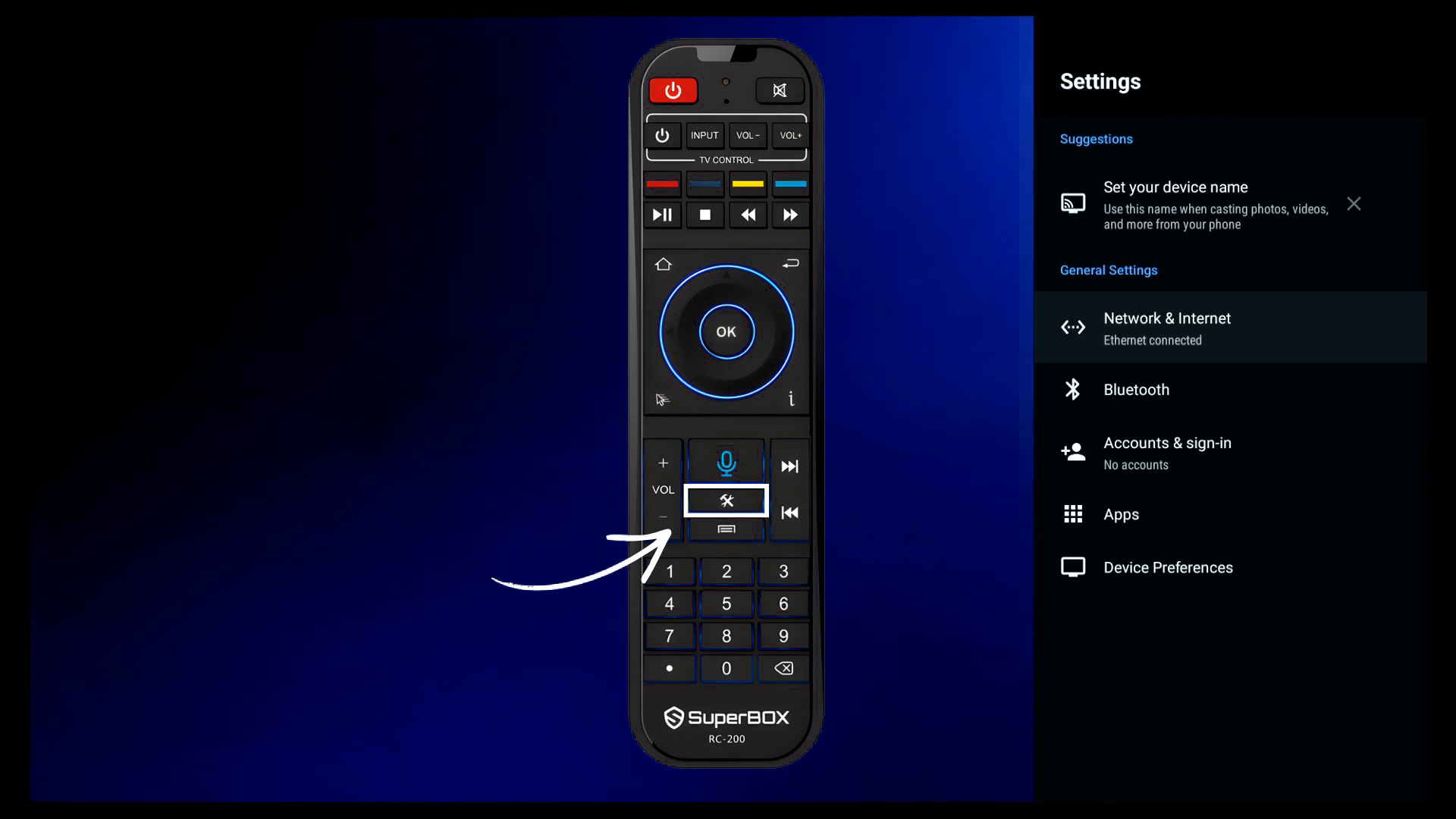
1. Press the Settings button on your remote. Even if you only see a blue screen, this will help open the settings panel on the right side
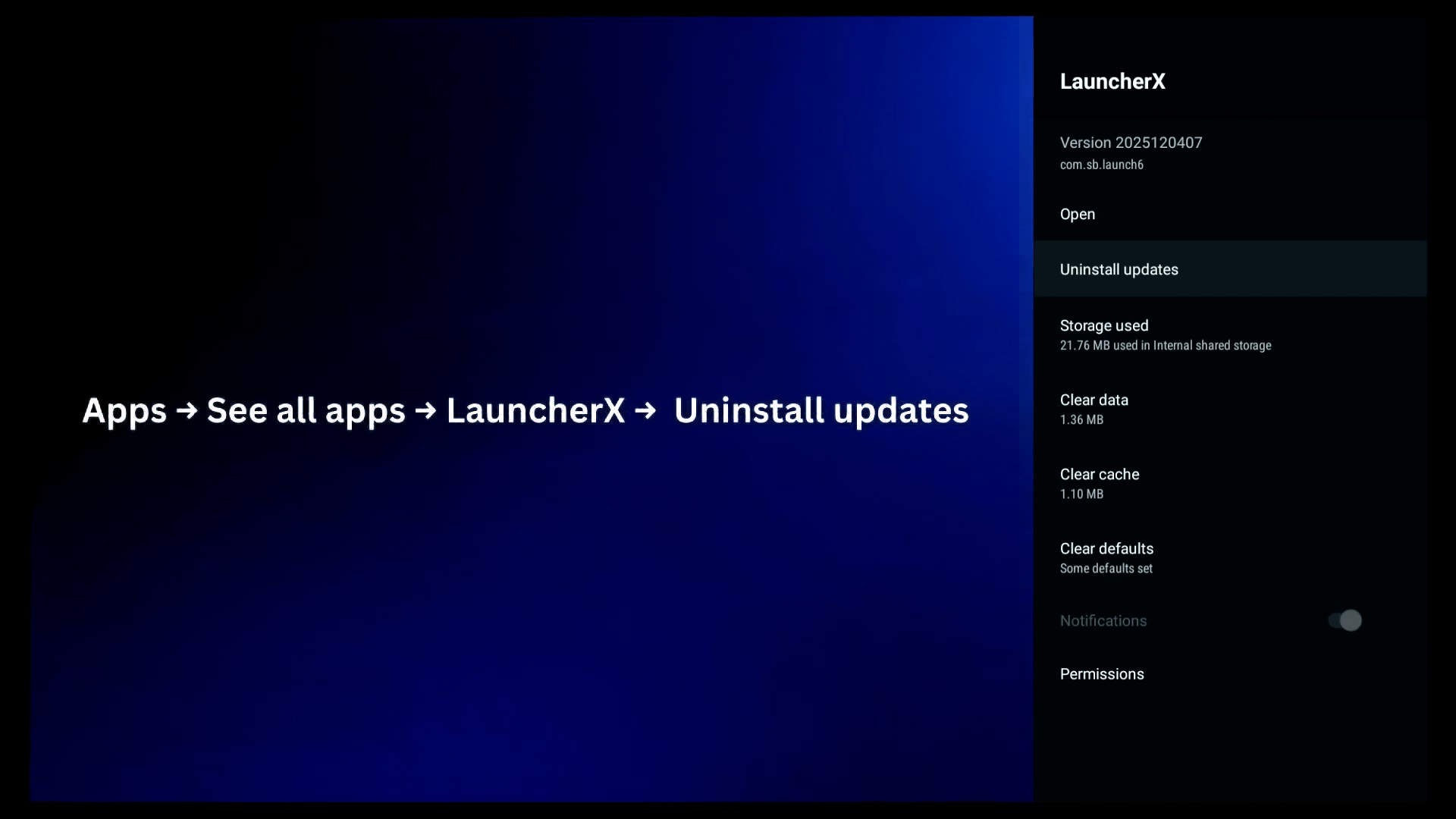
2. Go to Apps → See all apps. Find and select LauncherX
3. Select Uninstall updates and press OK. You can also clear data and cache to be safe
4. Press the back button and open the App Store. Search for LauncherX and update it manually
5. Once the update is complete, press the Home button. Your screen should return to normal
That’s it, you’re done. This method is simple and should resolve the issue in most cases. If the problem still persists, move on to Method 2 below.
If you’d like a visual walkthrough, watch the video below to see each step in action.
Method 2: Factory Reset
The second method is a factory reset. While it’s not always recommended since you’ll need to set everything up again, many users have successfully fixed the SuperBox blue screen using this method. That said, a factory reset isn’t necessary in every case, so we suggest trying Method 1 first before proceeding.
If you still want to proceed, there are two ways:
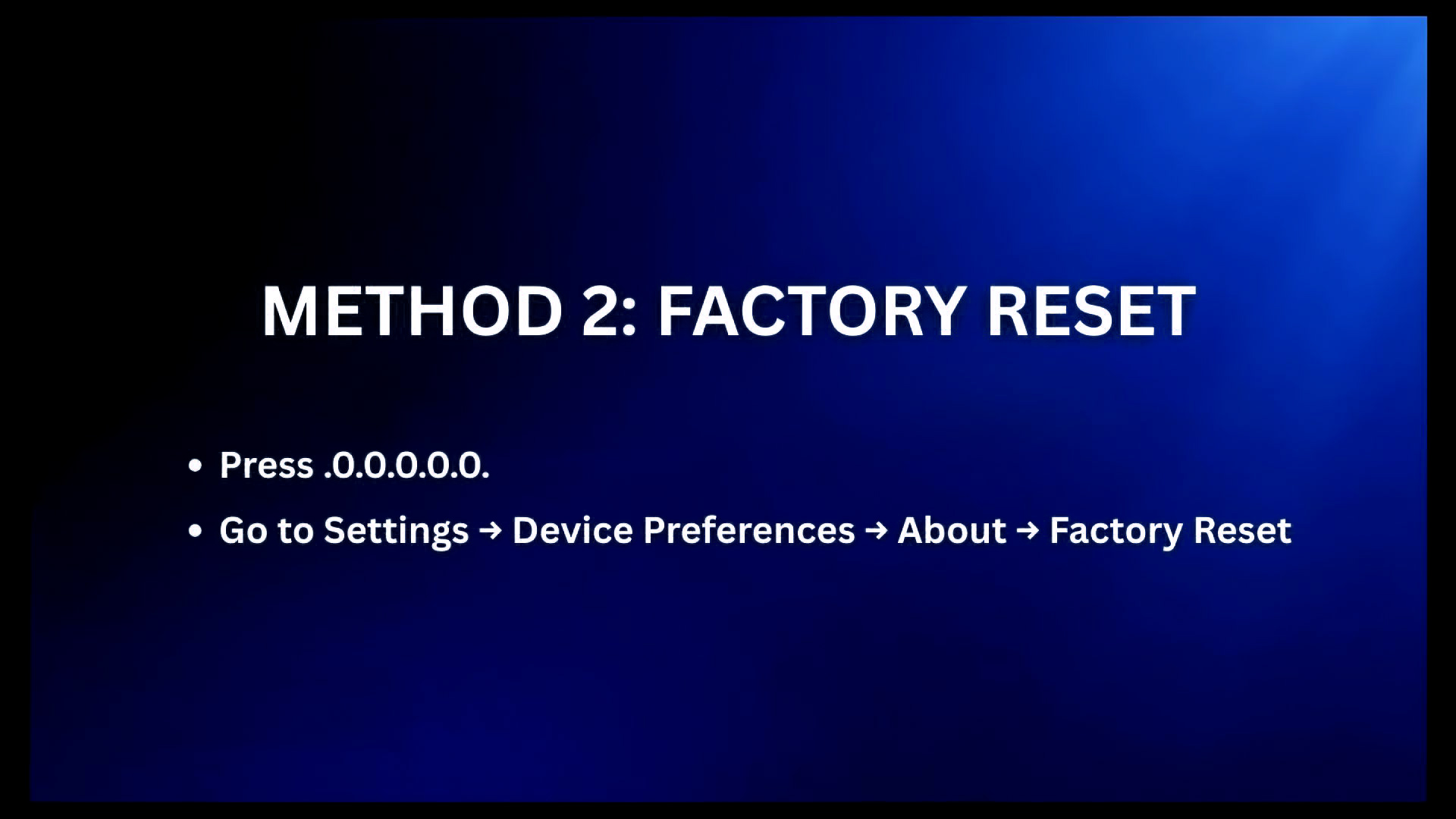
- Press .0.0.0.0.0. on your remote and the device will reset automatically
- Or Press the Settings button on your remote → Device Preferences → About → Factory Reset, then confirm
If you’re using an older device (such as S1, S2, or S3) and experiencing issues more frequently, it might be worth considering an upgrade. Newer models like SuperBox S7 Prime are designed for smoother performance and better stability, helping reduce problems like this in the long run.
Still Having Issues with Your SuperBox?
If you’ve tried both methods and the issue still isn’t resolved, feel free to contact us for further assistance. Our support team will help you get your SuperBox back to normal as quickly as possible. You can find our contact information at the bottom of this page.
For other issues beyond the blue screen such as internet connection problems, apps not working, lagging, or missing features, check out our full guide on the most common SuperBox problems and how to fix them.