Seeing a “Devices Abnormal” error pop up on your SuperBox can be alarming, especially if you’re not sure what caused it or how serious it is. The good news is that in most cases, this error comes down to one of two simple causes, and both are quick to resolve. This guide walks through why the error happens and exactly how to fix it, step by step.
Why SuperBox Devices Abnormal Error Happens
There are two common scenarios that trigger the “Devices Abnormal” error on SuperBox.
Brand new device that hasn’t been activated yet
In many cases, a newly purchased SuperBox won’t be pre-activated. This is intentional to prevent misuse if the device gets lost or intercepted during shipping. Activation requirements can vary depending on the seller you purchased from.
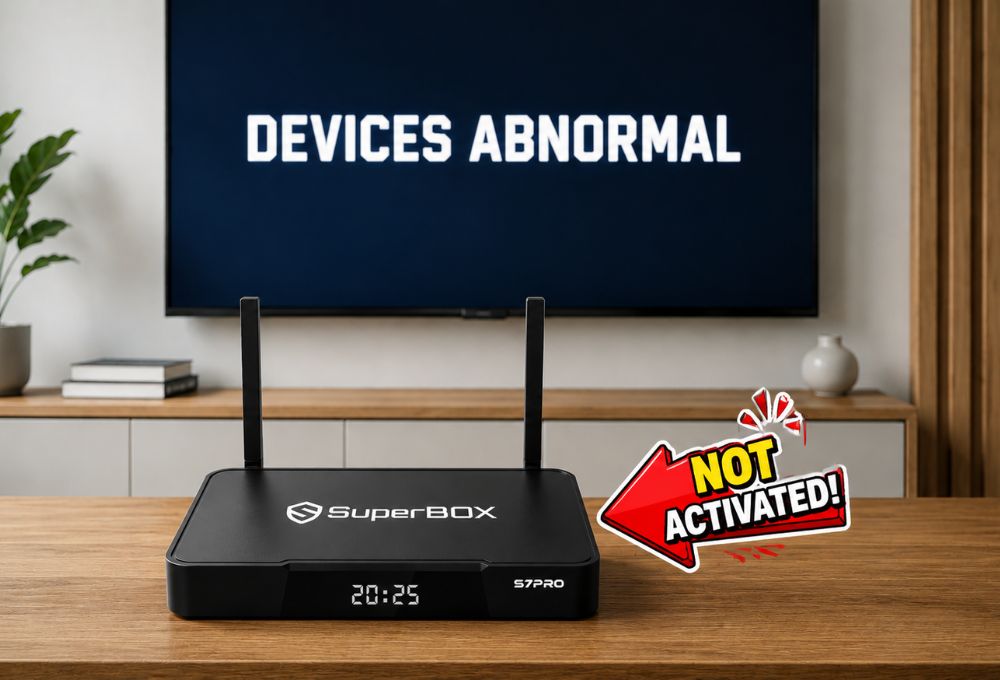
If you’re seeing this error on a brand-new unit, the fastest fix is to contact your seller directly and ask them to activate the device. This usually takes just a few minutes. If the seller is unable to activate it, the next step is to reach out to SuperBox’s official customer service team.
Device downloaded an outdated update by mistake
If this isn’t a new device and it was working fine before suddenly showing this error, the cause is often a version mismatch. This typically happens when the user taps update on an app and accidentally installs an older version instead of the latest one, causing a conflict between the app and the system.
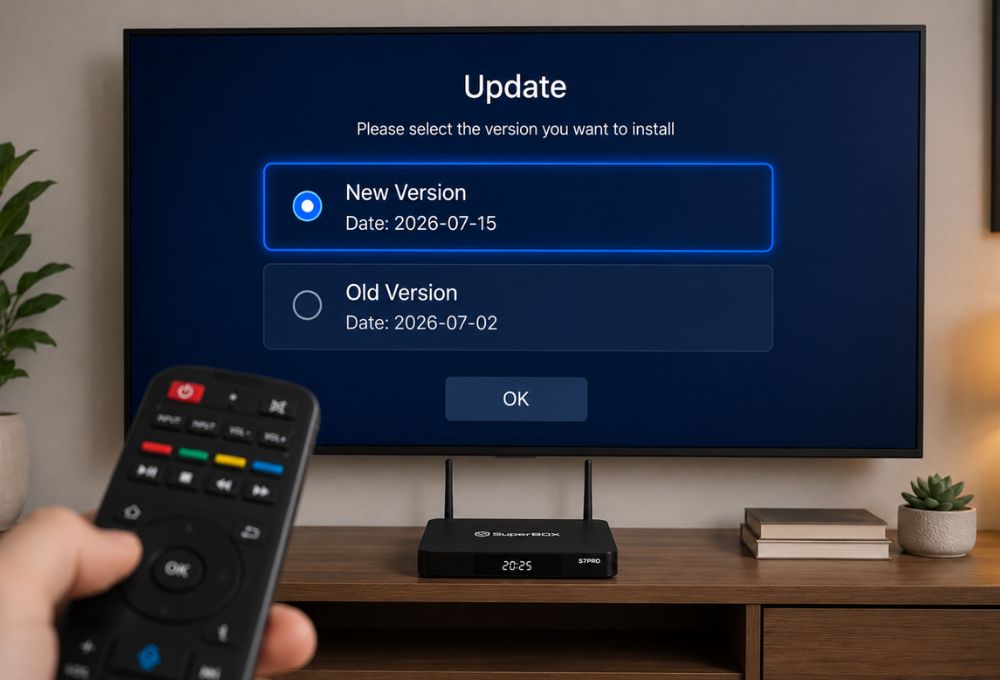
The good news: this case is easy to fix. See the steps below.
How to Fix SuperBox Devices Abnormal Error
Step 1: Delete and reinstall the affected app
There are two ways to delete the app:
- Method 1: On the main home screen, go to the trash bin icon in the bottom-left corner of the screen, select the app you want to remove, and delete it.
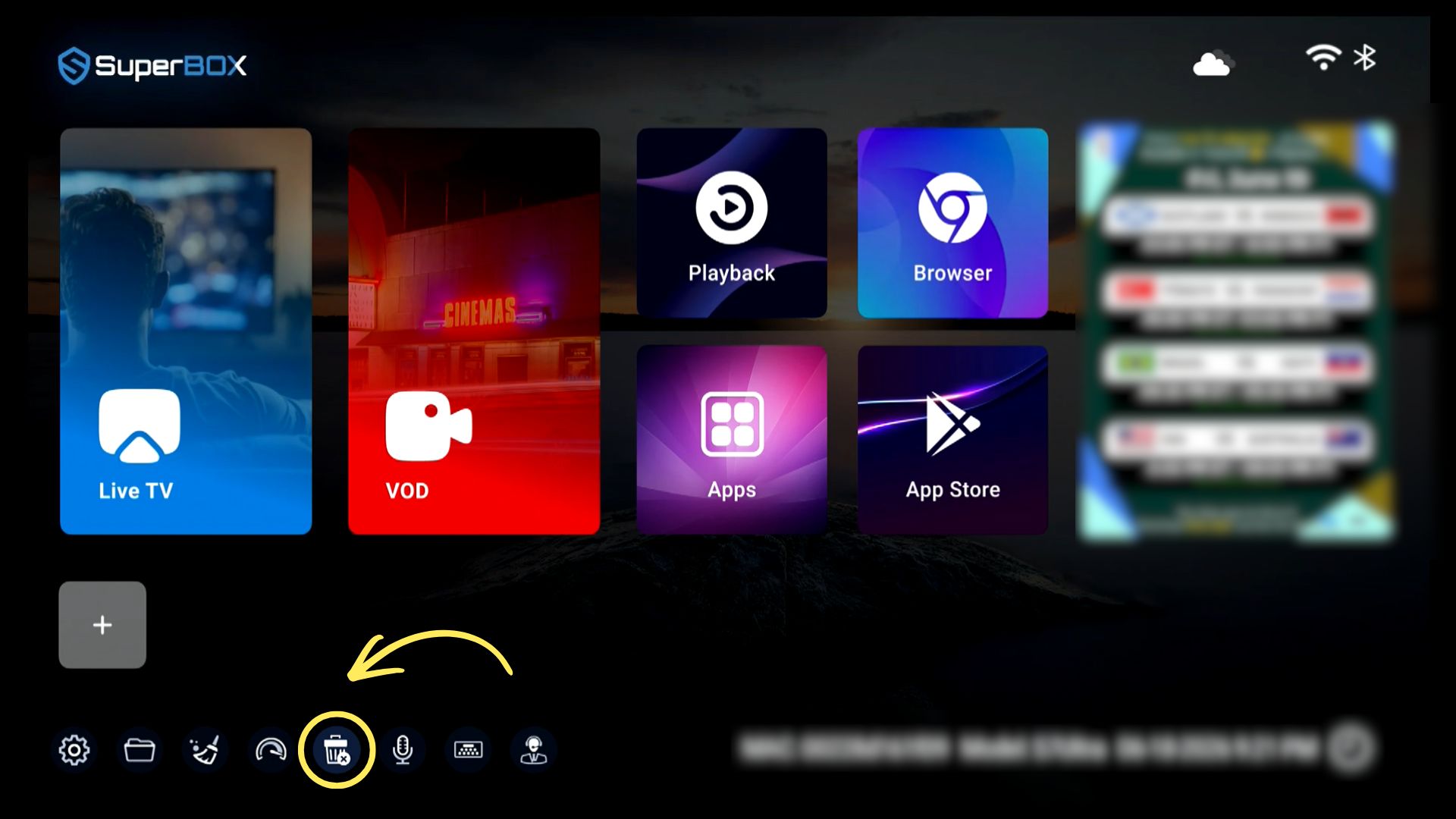
- Method 2: Go to Settings → Apps → See All Apps → Show System Apps, select the affected app, and delete it.
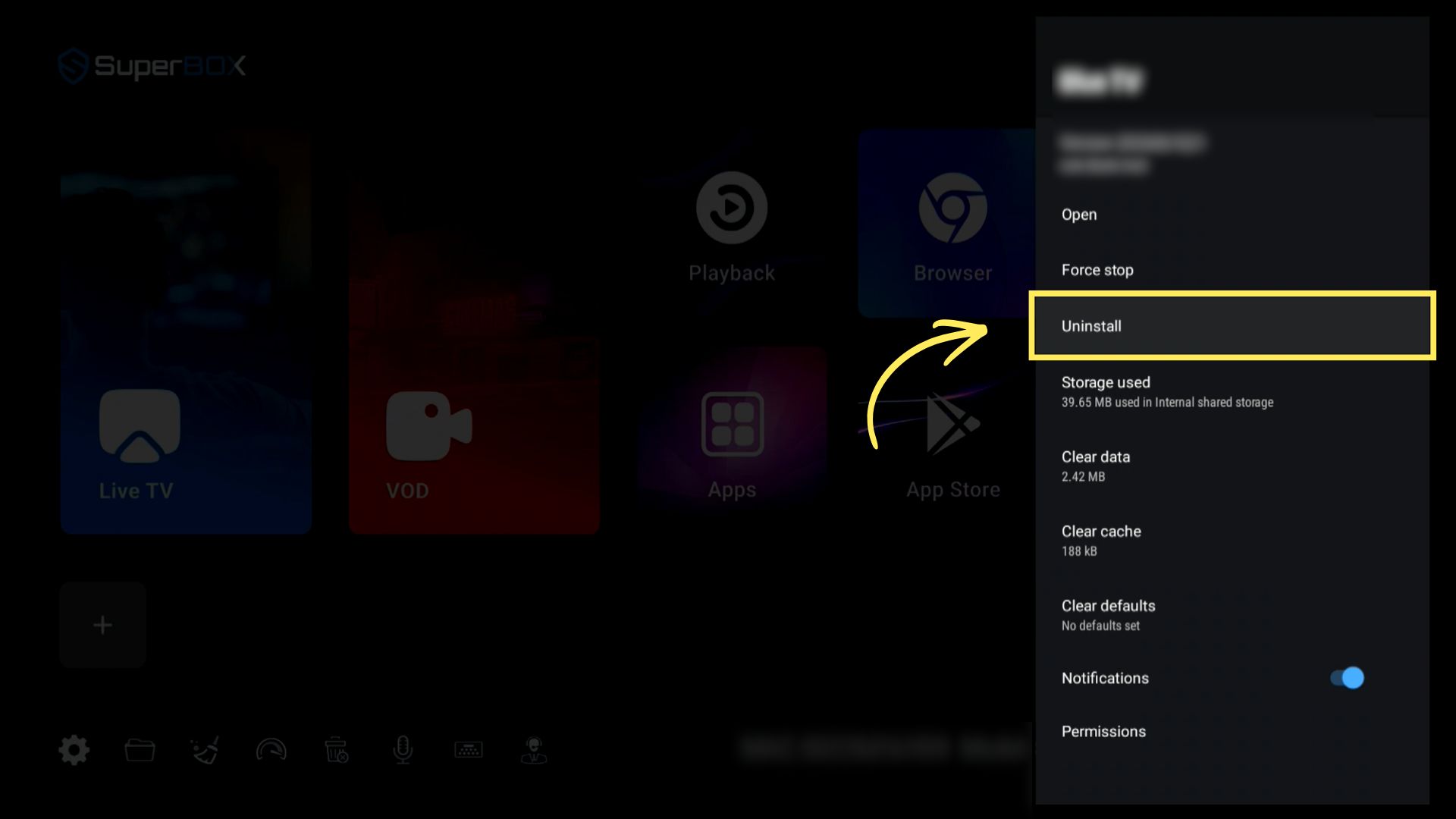
Step 2: Reinstall the latest version
Go to the App Store and download the latest version of the app.
A Few Notes
- If your usage gets interrupted, backup app can be used in the meantime.
- Avoid resetting the device every time an error pops up. Contact customer service first before attempting a reset.
- For official support, visit the SuperBox customer service page.
- Looking for fixes to other common issues? Check out this guide to common SuperBox issues and how to fix them.