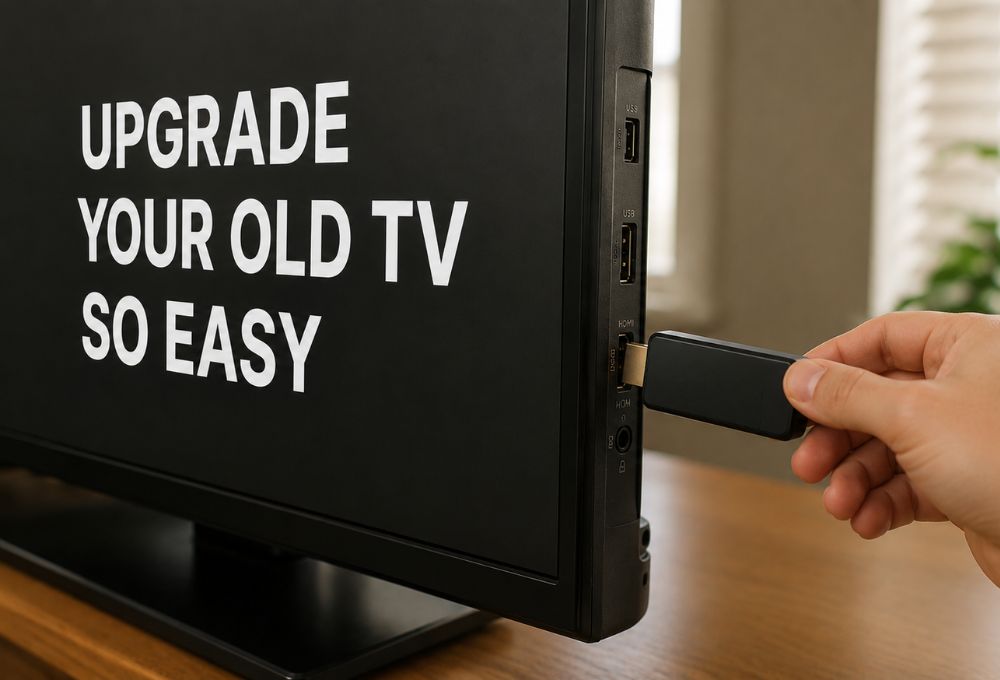
If your Android TV system is running slow, refusing to load your favorite apps, or stuck on an outdated OS version that won’t update anymore, you’re not alone. The Android TV upgrade process can feel frustrating when your hardware stops receiving support and manufacturers abandon updates just a few years after purchase. Most smart TVs today come with built-in Android systems that quickly fall behind as apps demand more processing power and newer software versions. The good news is that you don’t have to throw out your entire television just because the smart platform inside is outdated. A proper Android TV upgrade often involves adding an external streaming device that bypasses your TV’s internal system and delivers smooth, modern performance without replacing your perfectly good screen.
The Simple Steps to Update Your Android TV OS
Before deciding that an Android TV upgrade requires new hardware, it’s worth checking whether your built-in system still receives updates. Industry data shows that most smart TV manufacturers provide official firmware updates for only two to three years after a model’s initial release. After that window closes, users are left with frozen software that gradually becomes incompatible with newer app versions, security patches, and streaming protocols.
Step by Step Software Update Guide
Most Android TVs follow a similar path for checking and installing system updates. Navigate to your TV’s home screen and open the Settings menu, usually marked by a gear icon. Look for the System or About section, then select System Update or Software Update. If an update is available, your TV will display the version number and offer an option to download and install it. This process can take anywhere from ten minutes to an hour depending on the update size and your internet speed. Keep your TV plugged in and connected throughout the entire update process, as interruptions can cause serious software issues.
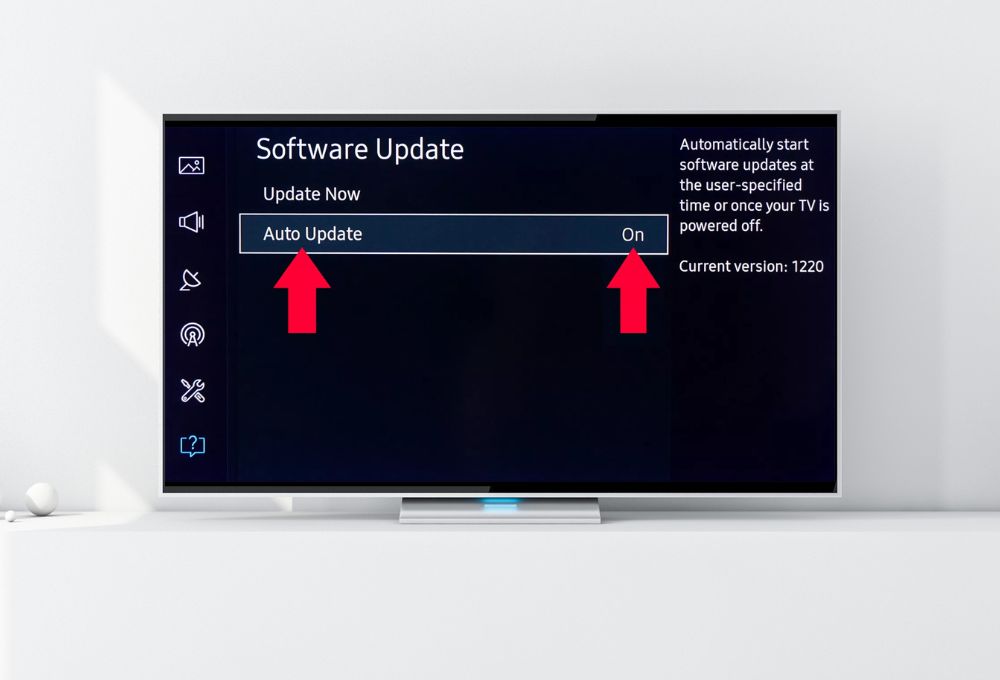
If your old TV displays a message saying no updates are available but your apps are crashing and buffering non stop, that’s a strong signal that your manufacturer may have ended support for your model. At that point, a software Android TV upgrade is no longer possible through official channels, and attempting risky manual firmware flashing often leads to bricked devices that won’t turn on at all.
How to Turn on Automatic Updates
Some Android TV systems allow users to enable automatic updates, which download and install new firmware in the background while the TV is in standby mode. In the same System or About menu, look for an Auto Update or Automatic System Updates toggle. Enabling this feature ensures that your TV stays current as long as your manufacturer continues releasing updates. However, streaming industry analysts note that automatic updates can sometimes introduce unwanted changes like intrusive home screen ads, layout redesigns, or performance slowdowns on older hardware that wasn’t designed to handle the new software load.
Why Your Smart TV Stopped Getting Updates
Understanding why your Android TV upgrade path hits a dead end helps clarify why an external solution makes sense. Smart TV manufacturers operate on a business model that prioritizes selling new units over supporting older ones. Unlike smartphones or computers, which often receive five to seven years of updates, smart TVs are typically abandoned far sooner.
The Hardware Bottleneck and Planned Obsolescence
Most smart TVs ship with minimal processors, limited RAM, and just enough storage to run the initial software smoothly. When newer Android OS versions arrive demanding more memory and processing power, older TVs simply can’t handle the load. This creates a hardware bottleneck where the screen itself remains perfectly functional, but the internal smart system becomes unusable. Industry observers point out that this design choice isn’t accidental. Manufacturers benefit financially when consumers replace entire televisions instead of just upgrading the streaming component.
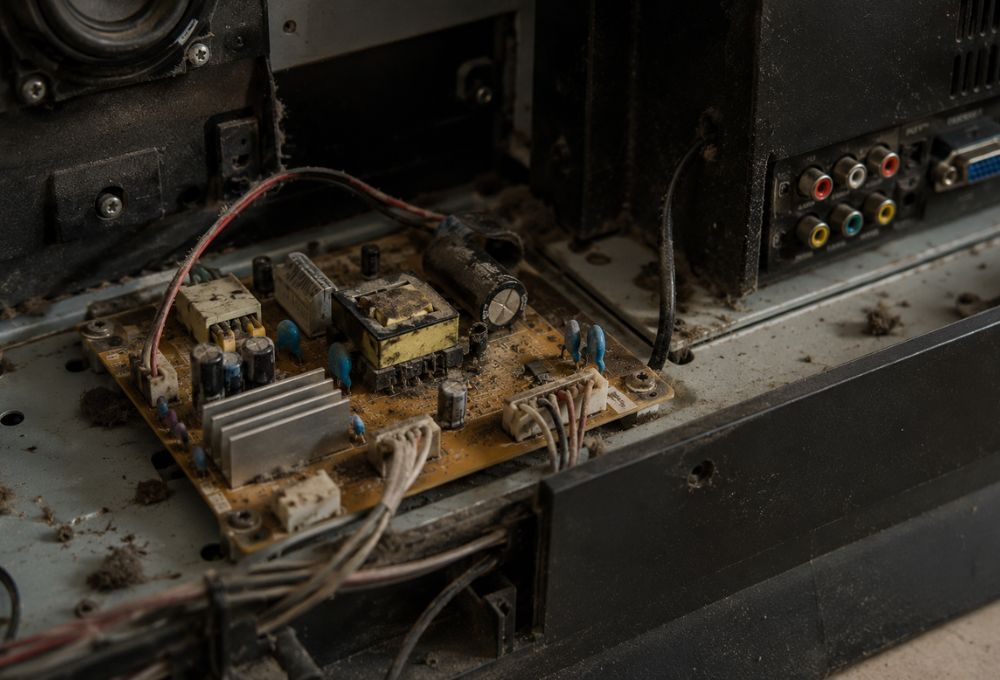
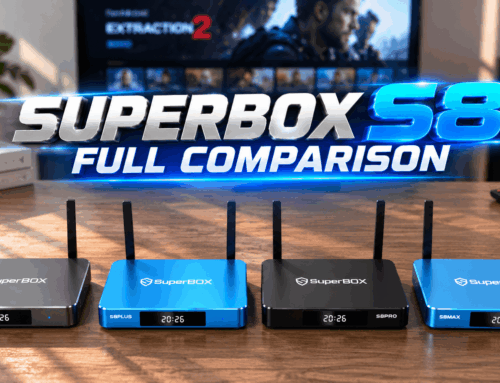
Users who search for an Android TV upgrade solution often discover that their TV’s processor, which may have cost the manufacturer just a few dollars, can’t be upgraded or replaced. The result is a situation where a beautiful high-resolution display becomes tied to outdated, sluggish software that ruins the viewing experience. The SuperBox: One of the leading TV box supplier in the US addresses this exact problem by offering dedicated streaming hardware that far outperforms built-in TV processors while delivering ongoing software support backed by nearly a decade of market presence.
Manufacturer Abandonment vs Ongoing Support
Smart TV brands typically wind down software updates once a model moves out of its active sales window. It’s not a policy failure so much as a business reality: TV makers are in the display business, not the software business. When a model stops selling, ongoing development stops too.
In contrast, dedicated streaming device manufacturers maintain longer support cycles because their entire business model depends on delivering a quality streaming experience rather than just selling display panels. This fundamental difference explains why many tech-savvy users recommend ignoring the TV’s built-in smart features entirely and relying on an external box from day one.
The Smart Way to Upgrade Hardware over Software
When software updates are no longer available and your TV’s performance continues declining, the most effective Android TV upgrade involves adding external hardware that completely bypasses your television’s internal system. This approach has become the go-to recommendation in streaming communities because it’s safer, easier, and more cost-effective than buying a new TV or attempting risky firmware modifications.
Why an External Streaming Box Beats a Built in Smart System
External streaming boxes deliver several key advantages over built-in TV systems. First, they feature significantly more powerful processors and RAM specifically designed for streaming tasks, resulting in faster app launches, smoother navigation, and better multitasking. Second, they receive regular software updates from manufacturers focused solely on streaming performance rather than display technology. Third, they offer greater flexibility in choosing which apps and services to install without being locked into a TV manufacturer’s limited app store.
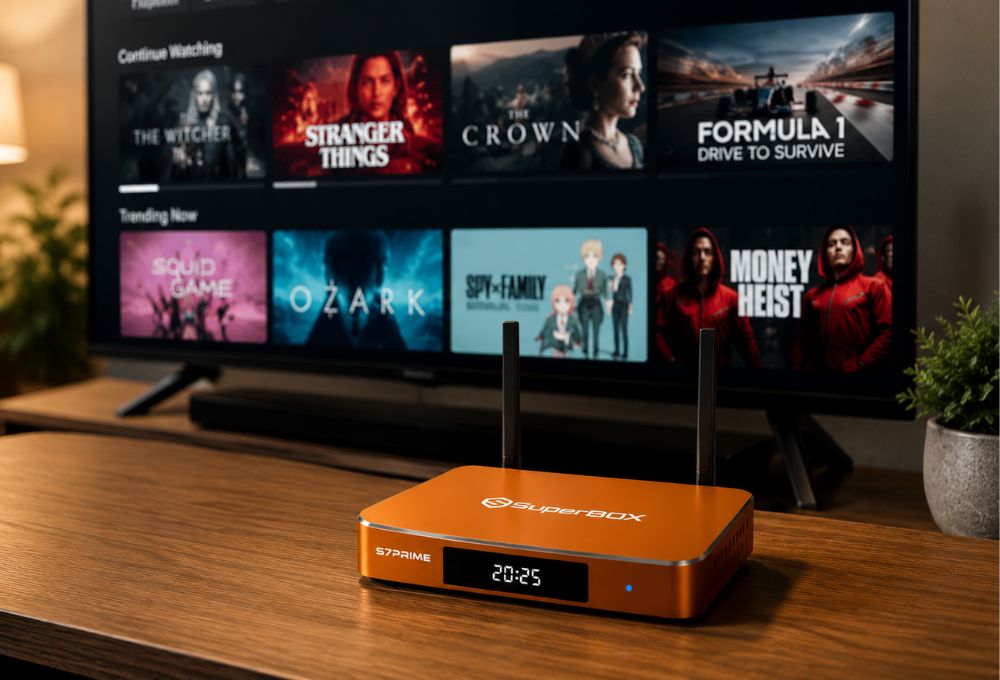
Industry analysis shows that users who complete an Android TV upgrade by adding an external box report dramatic improvements in overall satisfaction. Apps that previously took thirty seconds to load now open in just a few seconds. Buffering problems caused by insufficient processing power disappear. Navigation that once felt clunky and unresponsive becomes smooth and intuitive. The television’s original smart features remain accessible if needed, but most users simply switch to the HDMI input connected to their external box and never look back. For those interested in alternatives, the article on should you buy a streamer box explores the broader category in depth.
Introducing SuperBox The Ultimate One Time Purchase TV Upgrade
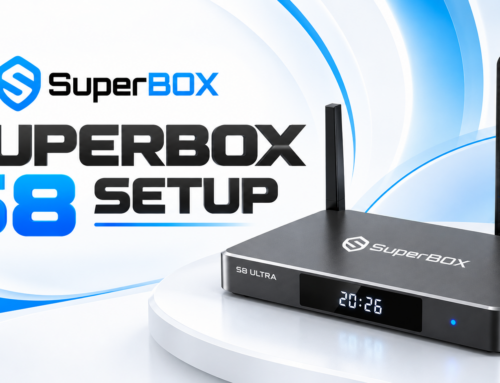
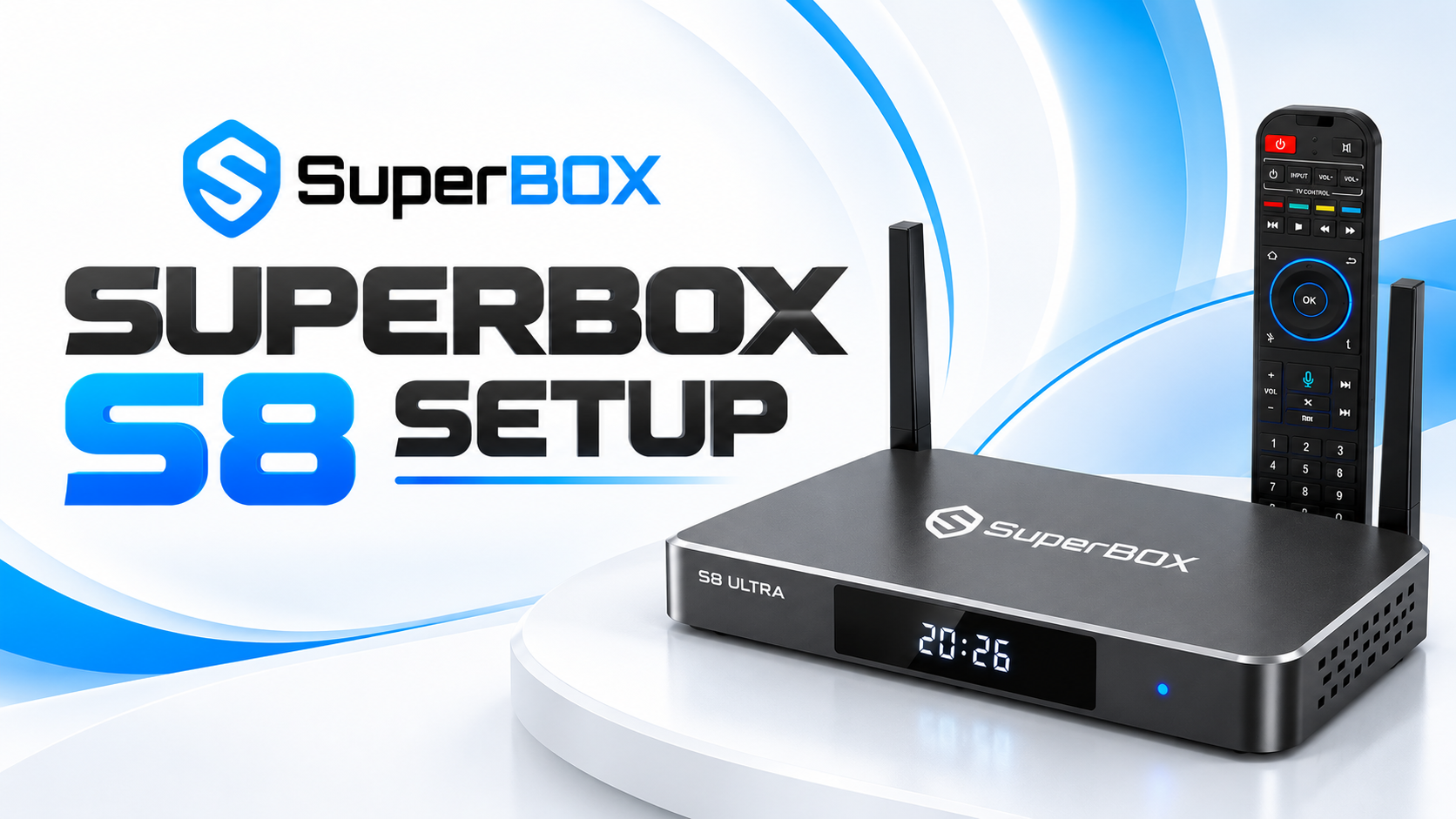
SuperBox represents an ideal solution for users seeking a permanent Android TV upgrade without ongoing subscription costs or monthly fees. As a dedicated Android streaming device with nearly ten years of market presence, SuperBox delivers modern hardware specifications, regular software updates, and support for a wide range of streaming apps. The device connects to any TV via HDMI, instantly transforming an outdated smart TV into a powerful streaming platform capable of handling 6K video resolution, advanced audio formats, and smooth multitasking.
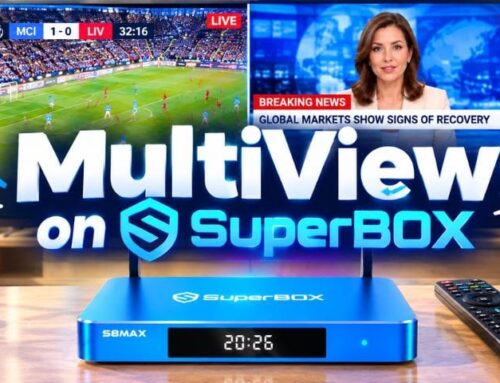
Unlike smart TVs that lock users into proprietary app stores and interfaces, SuperBox runs a full Android operating system that supports thousands of streaming applications. The device includes features like Time Shift for pausing and rewinding live content, Parental Controls for family-friendly viewing, and Voice Command for hands-free navigation. Users simply plug the box into their TV’s HDMI port, connect to WiFi, and immediately gain access to modern streaming capabilities that far exceed what their TV’s built-in system ever offered.
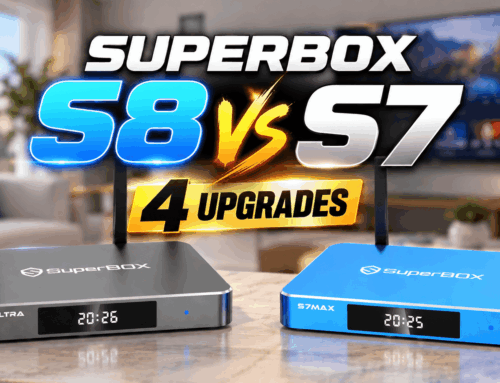
For families looking to cut cable costs while accessing international programming, SuperBox provides a one-time purchase solution that eliminates monthly fees while delivering ongoing software support. The SuperBox S7 Prime Android TV box serves users of all ages with intuitive interfaces and straightforward setup procedures that don’t require technical expertise.
How to Set Up an External Android TV Box
Completing an Android TV upgrade with an external streaming box involves a straightforward plug-and-play process that takes just minutes to complete. The simplicity of this approach explains why streaming experts consistently recommend external boxes over attempting complicated firmware modifications or buying entirely new televisions.
Quick Plug and Play Steps to Instant Upgrade
Start by locating an available HDMI port on your television, typically found on the back or side panel. Connect the streaming box to this port using the included HDMI cable. Plug the box’s power adapter into a wall outlet and connect it to the device. Turn on your television and use the TV remote to select the correct HDMI input source. The streaming box should power on automatically and display a welcome screen walking you through the initial setup process.
During setup, connect the device to your home WiFi network by selecting your network name and entering the password. The box will immediately check for any available system updates and prompt you to install them before proceeding. This ensures your Android TV upgrade starts with the latest software version. Once updates complete, you can sign in to your Google account to access the Play Store and download your preferred streaming apps, or simply use the apps already preinstalled on the device.
Tips for Optimizing Your New Streaming Experience
After completing your Android TV upgrade with an external box, a few optimization steps help ensure the best possible performance. First, verify that your home WiFi network delivers adequate speed and signal strength to your streaming device. Most modern streaming content requires at least 150 Mbps for smooth 4K playback, while 6K content demands even higher bandwidth. The guide on best WiFi settings for streaming provides detailed recommendations for network optimization.
Second, explore the device settings menu to customize picture quality, audio output, and interface preferences according to your viewing habits. Many streaming boxes offer display settings that adjust resolution, color depth, and refresh rate to match your TV’s capabilities. Configuring these settings properly ensures that your Android TV upgrade delivers the highest quality picture your television can produce. Third, take advantage of advanced features like parental controls, content filtering, and voice commands to create a personalized streaming environment that fits your household’s needs.
Frequently Asked Questions
Can I upgrade my old smart TV to a newer Android TV version?
You can check for official system updates in your TV settings under About, but if your manufacturer has stopped support, you cannot upgrade the built-in system. The best way to upgrade is by plugging in an external Android TV box.
What should I do if my Android TV says no updates are available but apps are crashing?
This means your TV has reached its end of life support and cannot run the newer app versions. The easiest fix is to bypass the TV built-in system and use a dedicated external streaming device.
How do I manually update my Android TV using a USB drive?
You must download the exact firmware file from your manufacturer website, save it to a USB drive, plug it into your TV, enter recovery mode, and run the update, but this carries a high risk of bricking your device if done incorrectly.
Does updating my Android TV delete my apps and data?
Standard over the air system updates will keep your apps, settings, and personal data intact, but a factory reset or manual firmware flash will wipe everything.
Why is my Android TV so slow after a system update?
Newer software versions require more processing power and RAM than your old TV hardware can provide, which is why adding a dedicated external streaming box is the best solution for a fast and smooth user interface.